Guide
To convert an MP4 to an animated GIF, upload the file or paste a direct MP4 URL into a free online converter, confirm the GIF settings, and download the result once the job finishes — no install and no watermark. Trim to the exact moment first; VideoComposer outputs a 320-pixel-wide GIF at 10 frames per second. The steps below cover the full process, including size and quality tips.
Want to skip the explanation and do it now? Open the MP4 to GIF Converter or use the Video to GIF Converter. Or browse all guides.
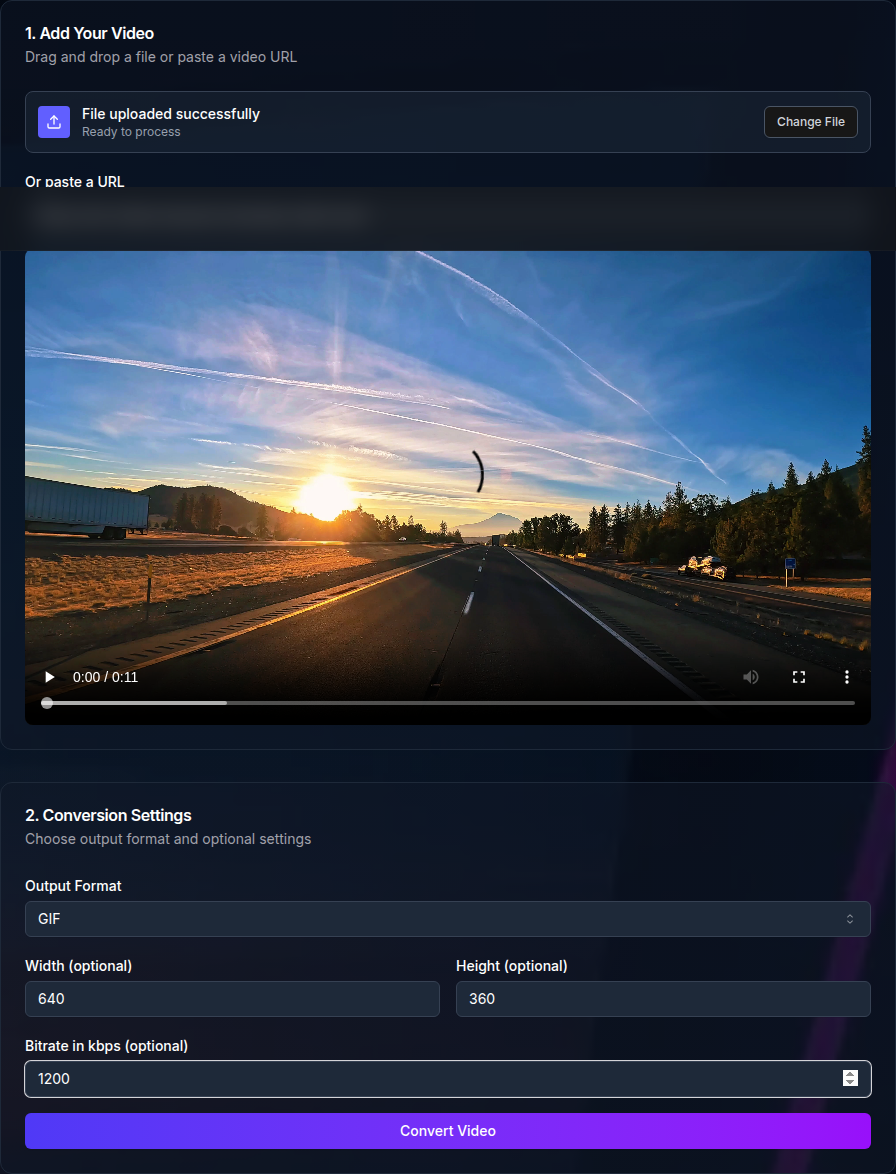
Converting an MP4 to GIF online takes three steps: upload the file or paste a direct MP4 URL, confirm the GIF output settings, and download the animated GIF once the job finishes. The workflow works through your browser, so there is nothing to install.
GIFs are ideal for short, looping moments that need to be shared quickly. They load in chat tools, help docs, and support tickets without a video player, which makes them a fast way to show a highlight or a quick UI demo.
MP4 remains the best choice for longer content or anything with audio. Use an animated GIF for short, silent previews and keep the source MP4 for full-quality playback.
Yes. Converting MP4 to an animated GIF online is free, with no signup required for occasional use. Anonymous sessions can process up to five jobs per day. Signed-in free accounts receive 600 CPU credits per month, with one credit covering one second of processing time.
Every conversion — free or paid — produces a clean animated GIF with no watermark, logo, or branding added to the output.
If you need to convert MP4 files to GIF regularly or at scale, the API supports the same conversion for free and paid accounts, so you can automate the workflow instead of using the browser tool for each file.
There is no real difference — a GIF created from a video is, by definition, an animated GIF. The GIF format stores multiple frames played in a loop, so converting an MP4 to GIF always produces a moving result, not a single still image.
If you only want one still frame rather than a moving image, you need a different kind of output entirely: a single image extracted from the video at a specific timestamp, not a GIF conversion. This MP4 to GIF converter is built specifically for the looping, multi-frame animated GIF use case.
Keeping this distinction in mind helps you choose the right settings: pick a short segment, not a single instant, so the converter has motion to animate.
The best animated GIFs focus on one moment. If your MP4 is long, trim it first to isolate the key section and then convert the trimmed output. This keeps the GIF focused and reduces file size.
If you are not sure which moment to pick, start with a 2 to 6 second range and adjust based on clarity. Short clips are easier to view and load faster in documentation.
Look for clean starts and stops. A quick motion that begins mid-action can feel jarring when it loops.
GIF size depends on duration and motion complexity as well as output dimensions and frame rate. VideoComposer standardizes MP4-to-GIF output at 320 pixels wide and 10 frames per second, preserving the source aspect ratio.
The fixed 10 fps output helps keep files manageable — an animated GIF does not need a full video frame rate to look smooth for short UI clips or product demos.
Because width and frame rate are not configurable for GIF output, trim the source to the exact moment you need and avoid busy motion when you want a smaller file.
GIFs are limited to 256 colors, so busy scenes can look noisy. Clean UI recordings, slides, or simple motion tend to look best.
If the source has a lot of movement, focus on one portion of the screen or trim to a calmer segment. This helps the loop feel smooth and keeps details sharp.
If the GIF looks choppy at the fixed 10 fps output, trim the clip shorter or choose a segment with less motion. Keep the source as MP4 when full-frame-rate playback matters.
If the GIF is rotated or upside down, re-encode the source MP4 to a standard H.264 MP4 and try again. This usually fixes orientation metadata issues.
Remember that the GIF format itself has no audio track, so an animated GIF converted from an MP4 with sound will always be silent — that is expected behavior, not an error.
After Effects has no direct "export as GIF" option, and the Render Queue does not offer GIF as an output format. The usual routes are Adobe Media Encoder's Animated GIF format, or rendering a video or image sequence and converting it to GIF in a separate pass — typically through Photoshop's GIF export tools or a dedicated online converter.
That render-then-convert process is exactly why people search for an After Effects GIF workflow — it takes real time and extra software to get from composition to animated GIF. If you already have an MP4 export from After Effects, you can skip the extra software step: drop that MP4 straight into this MP4 to GIF converter for a finished GIF in the browser.
If you need many GIFs, the API supports the same conversion flow. Submit an MP4 URL with out_format=gif and track the job until it completes. This is ideal for product pipelines or large content libraries.
Use the job ID to check status and collect the output URL when processing finishes. You can store the output in your own storage or deliver it to users.
GIFs do not include audio and are best for short loops. If your clip is longer, needs sound, or requires high quality, keep it as MP4.
A quick rule: if it is longer than a few seconds or you need crisp detail, share MP4 and only use GIFs for quick previews.
Yes. Anonymous sessions can process up to five conversion jobs per day with no signup required. Signed-in free accounts receive 600 CPU credits per month, and the API supports automated conversions for free and paid accounts.
Trim the MP4 to the exact moment you want and choose a segment without excessive motion. VideoComposer outputs GIFs at a fixed 320-pixel width and 10 fps, so clip length and motion complexity are the main size controls available in this workflow.
It's always an animated, looping GIF. The GIF format stores multiple frames played in sequence, so converting a video segment always produces motion. If you need a single still frame instead, that requires a different extraction step, not a GIF conversion.
No. The converter outputs GIFs at a fixed 10 frames per second to keep file size manageable. This is expected and is usually suitable for short UI demos or simple motion; for full-frame-rate playback, keep the source MP4.
No. VideoComposer never adds a watermark, logo, or branding to your converted GIF — the output is clean and ready to use, even on the free tier.
After Effects itself has no direct GIF export in current versions, and the Render Queue doesn't offer GIF as an output format. The usual routes are Adobe Media Encoder's Animated GIF format, or rendering to MP4 and converting that MP4 to GIF — either through Photoshop's GIF export tools or a browser-based converter like this one, which skips the extra software step.
Turn MP4 clips into lightweight GIFs for demos, memes, and product walkthroughs.
Use POST /video/convert with out_format=gif and track jobs with /jobs/:id.