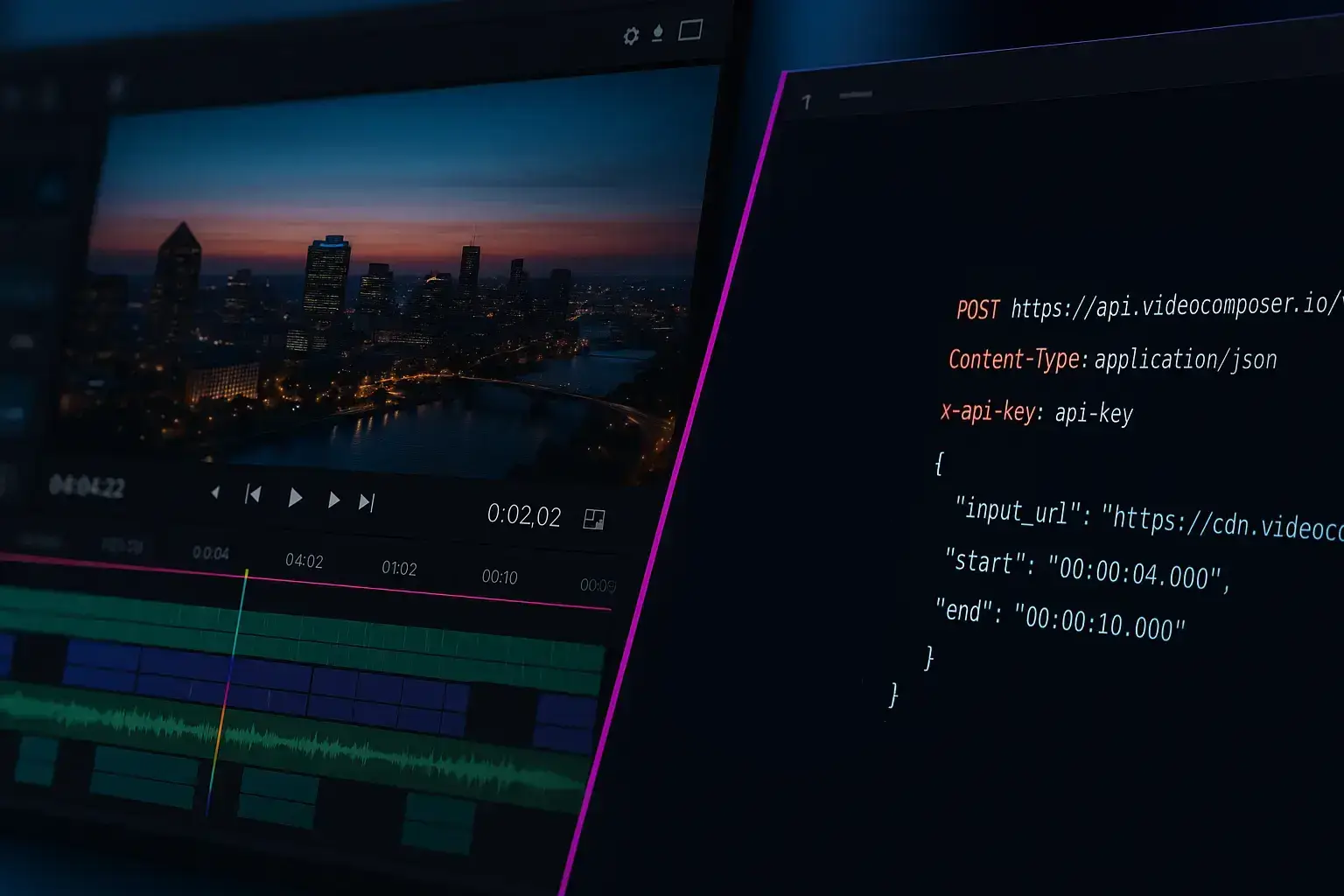
Trim the beginning and end of a video — no watermark, clean exports every time.
Use the toolTrimming is the fastest way to remove unwanted seconds from the beginning or end of a clip. VideoComposer lets you set clear start and end times and produce a clean output without desktop software. It is a simple tool that keeps the workflow focused on speed and accuracy.
The trimmer uses fast, keyframe-aligned cuts for efficiency. This is ideal for quick edits, but it can be off by a fraction of a second on some files. If you need frame-perfect precision, you can re-encode in your own workflow or request a precise mode in the future.
Every trim is an asynchronous job, so you can start the process and return once it is complete. For teams, the API offers the same trimming capability so you can automate edits at scale and keep results consistent.
Trimming is often the first step before conversion, watermarking, or merging. Shorter clips process faster and reduce the overall time needed for downstream jobs, which is especially helpful in CPU-based workflows.
If you handle recurring recordings, set consistent trim ranges to remove intros and outros across files. This keeps content standardized and saves manual time when publishing or sharing with teams.
When your video trimmer job completes, you will receive a downloadable output URL. You can save the result locally, share it with a teammate, or feed it into another tool such as the trimmer or converter. For repeatable workflows, use the API to store outputs in your own system and automate the next step.
Start and end times accept HH:MM:SS formatting. If you only need seconds, you can still provide a full timestamp like 00:00:10 for clarity.
For recurring edits, keep a simple list of timestamps so you can trim multiple files consistently. This reduces manual error and speeds up review cycles.
If you need precise edits, run a short test trim first to confirm your timestamps before processing long recordings.
Trimming uses fast stream copy when possible, so quality is preserved. Because cuts align to keyframes, the exact frame may shift slightly in some files.
Keyframe-aligned trimming is faster, but it can land a fraction of a second off. Re-encoding can provide frame-level precision if required.
Yes. The trimmer keeps the original resolution and codec settings where possible.
Audio is preserved with the same segment as the video.
The browser tool accepts MP4, WebM, MOV, and AVI. Sources with unusual or legacy codecs can still fail the cut — if that happens, convert to MP4 first. For other formats, convert them to MP4 or WebM first.
Anonymous users get 5 free jobs per day and a 50MB browser upload cap. Sign in for a 500MB upload cap and more consistent throughput, or use the API with a direct video URL to skip the browser upload limit entirely.
No. VideoComposer never adds watermarks, logos, or branding to your trimmed videos. The output is clean and ready to use — even on the free tier.
Yes. The API provides the same trimming functionality with asynchronous jobs.
For repeatable edits or large batches, the API lets you submit trim jobs with start and end times. Results are returned as output URLs you can store or deliver to users.
Combine trimming with conversion to standardize formats and clip lengths in one workflow.
Queue multiple trim jobs and track them asynchronously so your application remains responsive while processing runs in the background.
Cut long videos into short clips — no watermark, fast results for social, demos, and highlights.
Cut MP4 clips precisely — no watermark, clean output for sharing, support tickets, or product demos.
Encode or convert video to MP4, WebM, or GIF in minutes — no watermark, no install. Automate with our API.
Drag and drop a file, or paste a direct video file URL — not a YouTube, Vimeo, or Drive page link
or click to browse
Maximum file size: 500MB signed in, 50MB as a guest
Use a full file link like https://.../video.mp4 — YouTube, Vimeo, and Drive/Dropbox page links can't be processed. Signed CDN links can omit the extension.
Specify the start and end times for your trimmed video