
How to Merge Videos Online Free — No Signup, No Watermark
You can merge videos online for free using VideoComposer — no account required, no watermark added, and no software to install. Upload your MP4 files, drag them into order, and download the combined video in seconds. The entire process runs in your browser and supports subtitle-aware merging with SRT, VTT, and ASS files.
This guide covers everything you need to combine video clips quickly, plus a comparison of the best free online video merging tools available today.
What Is a Video Merger?
A video merger is an online tool that joins two or more video clips into a single file. You upload your clips, arrange them in the order you want, and the tool stitches them together — preserving audio, resolution, and optionally subtitles.
Online video mergers require no software installation. They run entirely in your browser, which means they work on Windows, Mac, and mobile devices without any setup.
Key benefits of browser-based video merging:
- No software download or installation required
- Works on any operating system with a modern browser
- Files are processed on the server and delivered back to you — no heavy local rendering
- Free tools handle most common use cases without a paid plan
Why Most Free Tools Add Watermarks — And VideoComposer Does Not
Most free online video mergers add a visible watermark to your output unless you upgrade to a paid plan. This is their business model: show you the result is possible, then charge you for a clean download.
VideoComposer works differently. The free tier gives you clean, watermark-free output with no signup required. You get the result immediately, and you own it.
What makes VideoComposer's free merge unique:
- No watermark on output files
- No account or email required
- Subtitle-aware merging — SRT, VTT, and ASS subtitle tracks are preserved and re-timed automatically
- Supports MP4, MOV, WebM, and other common formats
- Output is downloadable immediately after processing
How to Merge Videos Online with VideoComposer — Step by Step
Merging videos with VideoComposer takes under two minutes. Here is the exact process:
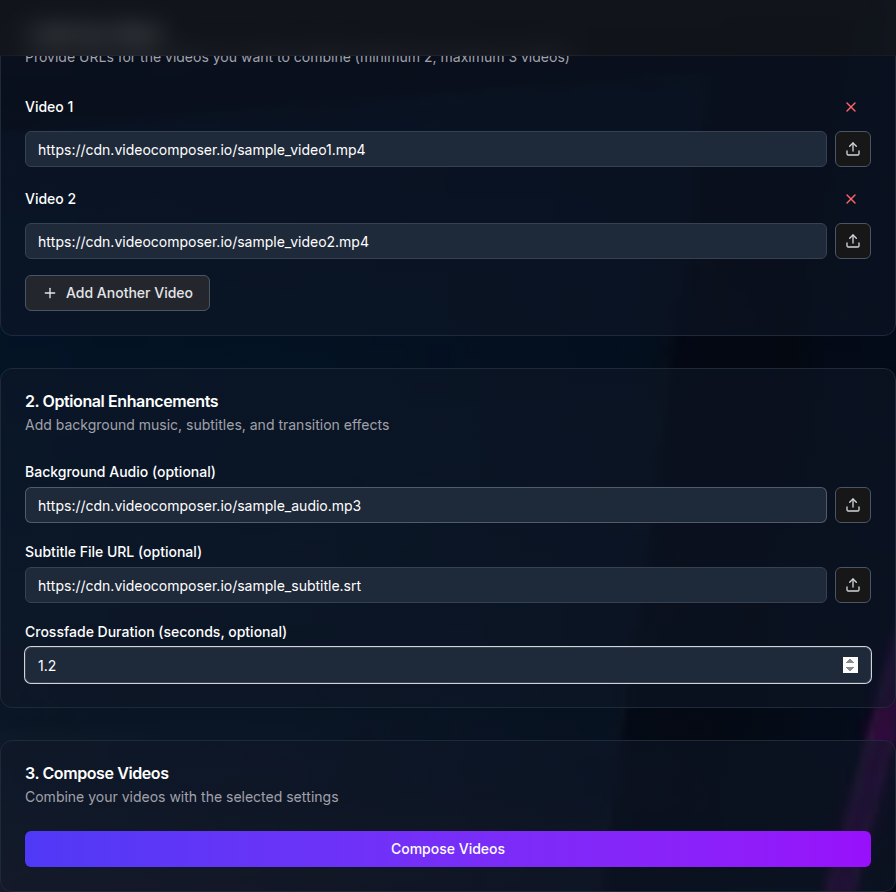
Go to the merge tool. Navigate to VideoComposer's merge videos tool. No signup or login required.
Upload your video files. Click the upload area or drag and drop your MP4 files. You can upload multiple clips at once. Maximum file size per clip depends on your plan — the free tier handles most standard-length clips.
Arrange the clips in order. Drag the thumbnails to set the sequence. The first clip in the list will be the beginning of the merged output.
Add subtitle files (optional). If your clips have accompanying SRT, VTT, or ASS subtitle files, upload them alongside the video. VideoComposer re-times subtitle cues automatically when it joins the clips, so dialogue appears at the correct moment in the final video.
Click Merge. Hit the Merge button. VideoComposer processes the clips server-side and notifies you when the file is ready.
Download your merged video. Click the download link to save the combined file. The output is a clean MP4 with no watermark.
Tip: If you need to trim a clip before merging — for example, to cut a few seconds from the start or end — use the MP4 cutter tool first, then bring the trimmed clip back to the merge tool.
Comparison: 5 Free Online Video Merging Tools
Not every tool is equal. Here is how the most popular free online video mergers compare on the features that matter most:
| Tool | Watermark? | Signup Required? | Max File Size | Subtitle Support |
|---|---|---|---|---|
| VideoComposer | No | No | Varies by plan | Yes (SRT, VTT, ASS) |
| Clideo | Yes (free tier) | No | 500 MB | No |
| Kapwing | Yes (free tier) | Yes | 250 MB | Yes (manual) |
| VEED.io | Yes (free tier) | Yes | 250 MB | Yes (auto-captions, paid) |
| Online Video Cutter | No | No | 500 MB | No |
VideoComposer is the only free tool in this list that removes the watermark without requiring a signup and also supports subtitle-aware merging. If subtitle tracks matter to your project — for example, you are combining recorded lectures, interviews, or captioned social videos — VideoComposer is the only free option that handles SRT, VTT, and ASS files automatically.
Clideo and Online Video Cutter skip the signup step, which is convenient, but neither preserves subtitle tracks. Kapwing and VEED.io offer richer editing features but lock clean output behind registration and paid plans.
What Video Formats Can You Merge Online?
Most online merge tools focus on MP4 because it is the dominant web and mobile format. VideoComposer supports merging MP4 files and other common formats. If you need to merge clips in a different format first, or convert the output after merging, the video converter tool handles format changes without re-encoding quality loss.
Common merge use cases by format:
- MP4 to MP4 — Most common. Direct merge, fast processing.
- MOV clips from iPhone — Merge clips recorded on iOS. Convert to MP4 first if the tool requires it.
- WebM clips — Common from screen recorders. Merge supported.
- Mixed formats — Upload clips in different formats and VideoComposer normalizes the output to a single MP4.
When to Use the Merge Tool vs. a Full Video Editor
An online merge tool is the right choice when you need to:
- Join two or more finished clips into one file
- Combine episode segments before publishing
- Stitch recorded interview segments together
- Join short-form clips for a compilation
A full video editor is better when you need to:
- Add transitions, titles, or background music between clips
- Color grade or stabilize footage
- Export in professional broadcast formats
For most content creators, social media editors, and educators, the merge tool gets the job done faster than loading a desktop editor.
Do You Need to Protect Your Merged Video?
If you are creating branded content and want to lock it with a visible logo or text overlay, you can add a watermark to your video after merging. This is the reverse of what most free tools do to you — instead of an unwanted watermark being forced onto your video, you choose exactly where your own branding appears.
For content that needs copyright protection or brand attribution, adding a custom watermark after the merge is a clean workflow: merge first, then brand.
Frequently Asked Questions
Is VideoComposer's video merger really free?
Yes. The merge tool is free to use with no account required. You upload your clips, merge them, and download the result. The free tier handles standard-length clips with no watermark on the output. For larger files or batch processing, see the pricing page for plan options.
Does merging videos reduce quality?
Quality depends on how the merge is performed. VideoComposer preserves the original resolution and codec settings by default, so there is no re-encoding quality loss on a straight merge. If you are combining clips with different resolutions or frame rates, the tool normalizes them to the highest common settings.
Can I merge more than two videos at once?
Yes. You can upload and merge multiple clips in a single session. The output is one combined file with all clips joined in sequence.
How do I merge MP4 files online without losing audio?
VideoComposer preserves the audio track from each clip when merging. You do not need to do anything special — upload your clips, set the order, and merge. The audio from all clips is included in the output in the correct sequence.
Can I merge videos with subtitles?
Yes, and this is one of the key differentiators of VideoComposer. If your clips have SRT, VTT, or ASS subtitle files, upload them alongside the video clips. VideoComposer re-times the subtitle cues based on clip duration so the dialogue lines appear at the correct timestamps in the merged output.
What is the difference between merging and cutting videos?
Merging (also called joining or concatenating) combines multiple clips into one longer file. Cutting (also called trimming) removes portions of a single clip to make it shorter. VideoComposer offers both — use the MP4 cutter to trim clips and the merge tool to join them.
Is there a limit to how many videos I can merge?
The free tier supports merging standard-length clips up to the file size limit. For larger projects or bulk operations, check the pricing page for plan details. For developers who need to merge videos at scale programmatically, the VideoComposer API handles batch processing automatically.
Summary
Merging videos online for free is straightforward with the right tool. VideoComposer gives you clean, watermark-free output with no signup required — and it is the only free tool that supports subtitle-aware merging with SRT, VTT, and ASS files.
Start by heading to the merge videos tool, upload your clips, arrange them, and download the result. If you need to trim a clip first, the MP4 cutter is one click away. For more video editing tools, browse the full blog for guides on cutting, converting, and watermarking your videos.