
How Do You Add Subtitles to a Video Using an API?
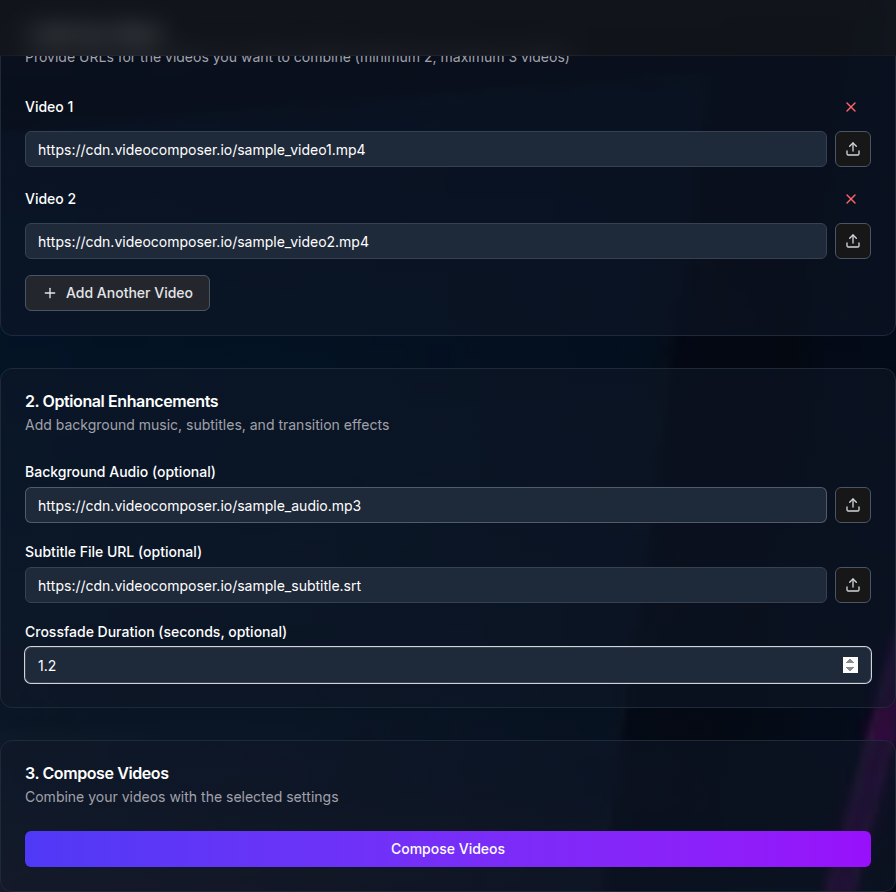
You can add subtitles to videos programmatically using the VideoComposer API's /api/v1/compose endpoint. Upload your video and an SRT or VTT subtitle file, specify styling options, and receive a subtitled output with captions burned in. This tutorial walks through the full implementation in curl, Node.js, and Python. Full API documentation is at /developers.
Why Add Subtitles to Videos Programmatically?
Manual subtitling in video editors does not scale. When you need captions across dozens or hundreds of videos — for accessibility compliance, multilingual audiences, or social media — an API-based approach is the only viable path.
Key reasons to use a video subtitle API:
- Accessibility compliance at scale — WCAG 2.1 and ADA requirements apply to video content. An API lets you caption every video automatically rather than retroactively fixing your library one file at a time
- Social media engagement — 85% of social media videos are watched without sound. Burned-in captions keep viewers engaged in silent autoplay environments
- Multilingual support — swap in translated SRT files to produce localized versions of the same video without re-editing
- Batch processing — caption an entire video library in a single pipeline run rather than spending hours in a desktop editor
What Subtitle Formats Does the VideoComposer API Support?
The VideoComposer API accepts both SRT and VTT subtitle files. Both formats carry the same timing and text data, but differ in syntax. Choose based on where your subtitles come from.
| Format | Extension | Syntax Style | Common Source |
|---|---|---|---|
| SubRip | .srt | Plain text with --> timestamps | Most transcription tools, YouTube export |
| WebVTT | .vtt | Similar to SRT with WEBVTT header | Browser <track> elements, web video players |
SRT is the more universal format and the safest choice if you are unsure. The API processes both identically — specify the format with the subtitle_format parameter.
What Do You Need Before You Start?
Before making your first API call, have these two things ready:
- An API key — generate one from the developers page. Your key goes in the
Authorizationheader as a Bearer token. - A subtitle file — an
.srtor.vttfile with timestamps matching the video. If you do not have one yet, transcription tools like Whisper can generate SRT files from audio automatically.
You do not need to install video libraries or configure codecs. The API handles all subtitle rendering server-side.
Step 1: Basic Subtitle API Call With curl
The simplest subtitle request sends your video file and subtitle file together. The subtitle_format parameter tells the API which parser to use.
curl -X POST https://videocomposer.io/api/v1/compose \
  -H "Authorization: Bearer YOUR_API_KEY" \
  -F "file=@video.mp4" \
  -F "subtitles=@captions.srt" \
  -F "subtitle_format=srt" \
  -F "subtitle_position=bottom-center" \
  -F "output_format=mp4"
The response includes a download_url for the processed file and a job_id for status polling on large files. For a full list of parameters and response schemas, see the API reference at /developers.
Step 2: Node.js Implementation
This example uses the built-in fetch API available in Node.js 18+. The only additional dependency is form-data for the multipart upload.
import { readFileSync } from 'fs';
import FormData from 'form-data';

const API_KEY = process.env.VIDEOCOMPOSER_API_KEY;
const API_URL = 'https://videocomposer.io/api/v1/compose';

async function addSubtitles(videoPath, subtitlePath, options = {}) {
  const {
    format = 'srt',
    position = 'bottom-center',
    fontSize = '24',
    fontColor = 'white',
  } = options;

  const form = new FormData();
  form.append('file', readFileSync(videoPath), { filename: 'video.mp4' });
  form.append('subtitles', readFileSync(subtitlePath), { filename: 'captions.srt' });
  form.append('subtitle_format', format);
  form.append('subtitle_position', position);
  form.append('subtitle_font_size', fontSize);
  form.append('subtitle_font_color', fontColor);
  form.append('output_format', 'mp4');

  const response = await fetch(API_URL, {
    method: 'POST',
    headers: {
      Authorization: `Bearer ${API_KEY}`,
      ...form.getHeaders(),
    },
    body: form,
  });

  if (!response.ok) {
    const error = await response.json();
    throw new Error(`API error ${response.status}: ${error.message}`);
  }

  const result = await response.json();
  console.log('Download URL:', result.download_url);
  return result;
}

// Usage
addSubtitles('./source.mp4', './captions.srt', {
  position: 'bottom-center',
  fontSize: '28',
  fontColor: 'white',
});
Store your API key in an environment variable — never hardcode credentials in source files. The example reads from process.env.VIDEOCOMPOSER_API_KEY.
Step 3: Python Implementation
This example uses the requests library, which is the standard HTTP client for Python.
import os
import requests

API_KEY = os.environ.get("VIDEOCOMPOSER_API_KEY")
API_URL = "https://videocomposer.io/api/v1/compose"

def add_subtitles(
    video_path: str,
    subtitle_path: str,
    subtitle_format: str = "srt",
    position: str = "bottom-center",
    font_size: str = "24",
    font_color: str = "white",
) -> dict:
    headers = {
        "Authorization": f"Bearer {API_KEY}",
    }

    with open(video_path, "rb") as video_file, open(subtitle_path, "rb") as sub_file:
        files = {
            "file": ("video.mp4", video_file, "video/mp4"),
            "subtitles": ("captions.srt", sub_file, "text/plain"),
        }
        data = {
            "subtitle_format": subtitle_format,
            "subtitle_position": position,
            "subtitle_font_size": font_size,
            "subtitle_font_color": font_color,
            "output_format": "mp4",
        }

        response = requests.post(API_URL, headers=headers, files=files, data=data)

    response.raise_for_status()  # raises HTTPError for 4xx/5xx responses
    result = response.json()
    print(f"Download URL: {result['download_url']}")
    return result


# Usage
add_subtitles(
    "source.mp4",
    "captions.srt",
    position="bottom-center",
    font_size="28",
    font_color="white",
)
The raise_for_status() call ensures exceptions are raised for error responses. Wrap this in a try/except block in production to handle failures gracefully.
What Subtitle Positioning Options Are Available?
The subtitle_position parameter controls where captions appear on the video frame. Choose a position that does not conflict with your video's action or existing on-screen text.
| Position Value | Placement | Common Use Case |
|---|---|---|
bottom-center | Lower center of frame | Standard broadcast captioning, most common default |
bottom-left | Lower left corner | Some European broadcast standards |
bottom-right | Lower right corner | Avoids conflict with sign language interpreter inserts |
top-center | Upper center of frame | When bottom is occupied by lower-thirds or graphics |
top-left | Upper left corner | Subtitle-over-subtitle layering (second language) |
All positions respect a default margin from the video edges. Bottom-center is the most widely expected position and should be your default unless you have a specific reason to override it.
How Do You Add Subtitles to Multiple Videos in a Batch?
For batch subtitle processing, loop over your video files and submit each one to the API with async=true. This queues jobs immediately instead of waiting for each one to complete before starting the next.
Node.js batch subtitle example:
import { readFileSync } from 'fs';
import { readdir } from 'fs/promises';
import path from 'path';
import FormData from 'form-data';

const API_KEY = process.env.VIDEOCOMPOSER_API_KEY;

async function submitSubtitleJob(videoPath, subtitlePath) {
  const form = new FormData();
  form.append('file', readFileSync(videoPath), { filename: path.basename(videoPath) });
  form.append('subtitles', readFileSync(subtitlePath), { filename: 'captions.srt' });
  form.append('subtitle_format', 'srt');
  form.append('subtitle_position', 'bottom-center');
  form.append('output_format', 'mp4');
  form.append('async', 'true'); // non-blocking — returns job_id immediately

  const response = await fetch('https://videocomposer.io/api/v1/compose', {
    method: 'POST',
    headers: { Authorization: `Bearer ${API_KEY}`, ...form.getHeaders() },
    body: form,
  });

  const result = await response.json();
  return result.job_id;
}

async function pollJobStatus(jobId) {
  const url = `https://videocomposer.io/api/v1/jobs/${jobId}`;
  while (true) {
    const response = await fetch(url, {
      headers: { Authorization: `Bearer ${API_KEY}` },
    });
    const job = await response.json();
    if (job.status === 'complete') return job.download_url;
    if (job.status === 'failed') throw new Error(`Job ${jobId} failed: ${job.error}`);
    await new Promise((r) => setTimeout(r, 5000)); // poll every 5 seconds
  }
}

async function batchAddSubtitles(videoDir, subtitlePath) {
  const files = (await readdir(videoDir)).filter((f) => f.endsWith('.mp4'));
  console.log(`Submitting ${files.length} subtitle jobs...`);

  // Submit all jobs concurrently
  const jobIds = await Promise.all(
    files.map((file) => submitSubtitleJob(path.join(videoDir, file), subtitlePath))
  );

  // Poll for completion
  const downloadUrls = await Promise.all(jobIds.map(pollJobStatus));
  console.log('All jobs complete. Download URLs:', downloadUrls);
  return downloadUrls;
}

batchAddSubtitles('./videos', './captions.srt');
Set async=true on each request so jobs are queued immediately. This lets you submit dozens of subtitle jobs in parallel then poll for results. Check /pricing for concurrent job limits on your plan.
API vs. Manual Subtitling: Which Should You Use?
Both approaches have valid use cases. The right choice depends on volume, consistency requirements, and whether subtitling is a one-time task or an ongoing workflow.
| Factor | Manual Subtitle Editor | VideoComposer API |
|---|---|---|
| Setup time | Immediate — open editor, import SRT | 30-60 minutes to integrate |
| Time per video | 5-15 minutes per video | Under 1 minute per video at scale |
| Batch processing | Not practical beyond a few videos | Built-in — loop hundreds of files |
| Consistency | Depends on manual steps each run | Identical styling every run |
| Automation | Not possible | Trigger on upload, schedule overnight runs |
| Cost | Editor software license or manual labor | Per-operation API pricing |
| Technical skill | Low — visual timeline interface | Moderate — code required |
| Best for | One-off captioning, ad hoc corrections | Ongoing pipelines, large video libraries |
For teams captioning more than a handful of videos per week, the API approach pays off quickly. The browser-based compose tool is the right choice for quick one-off needs — no code required.
Frequently Asked Questions
What subtitle formats does VideoComposer support?
VideoComposer accepts SRT (.srt) and WebVTT (.vtt) subtitle files. Both formats are supported equally — specify which you are using with the subtitle_format parameter. SRT is the more universally compatible format and the best choice if you are unsure which to use.
Can I customize subtitle font and color?
Yes. The API accepts subtitle_font_size (numeric pixel value), subtitle_font_color (named colors or hex values like white or #FFFFFF), and subtitle_position parameters. You can match your brand's typography by setting these on every API call.
How do I add subtitles to multiple videos at once?
Use the async=true parameter to submit all jobs concurrently without waiting for each one to complete. You receive a job_id for each submission. Poll GET /api/v1/jobs/{job_id} to check completion and retrieve the download_url. See the batch processing example in the Node.js section above.
Is there a free tier for the subtitle API?
The browser-based compose tool at /tools/compose is available free in your browser without an API key. Programmatic API access is available on paid plans. See /pricing for current plan details and rate limits.
Can I burn subtitles in or add them as a separate track?
The /api/v1/compose endpoint burns subtitles directly into the video frames. This produces a single output file compatible with any player without requiring subtitle track support. Separate soft-subtitle tracks (embedded .vtt inside a container) are not currently supported — burned-in captions are the universally compatible option. For more on subtitle workflows, see how to merge videos with subtitles online.
How does subtitle automation compare to manual subtitle editors?
Manual editors are appropriate for one-off captioning tasks where you need to review and adjust timings by hand. API automation is appropriate when you need consistent output across many videos, when subtitling is triggered automatically by a video upload event, or when you are processing a backlog of uncaptioned content. The comparison table above covers the full breakdown.
Get Started With Subtitle Automation
The VideoComposer API makes programmatic subtitle addition straightforward: one endpoint, three required parameters (video file, subtitle file, format), and your captions are burned in.
- No-code option — try the browser-based compose tool immediately, no sign-up required
- API access — get your API key and full endpoint documentation at /developers
- Explore other tools — merge, cut, watermark, and convert tools are available at /tools. For subtitle-aware video merging, see how to merge videos with subtitles online
- API developer guide — for a broader overview of the VideoComposer API including authentication, rate limits, and error handling, read the video processing API developer guide
- Check pricing — API plan details and rate limits are on the pricing page