Any MP4, WebM, MOV, or AVI video to GIF: create loopable animations for sharing and support.
Use the toolUse this page when you want to turn a video into a looping GIF that is easy to share. The converter accepts MP4, WebM, MOV, and AVI inputs and outputs a compact GIF that works in chats, tickets, and documentation. It is a fast way to show a motion sample without asking viewers to open a video player.
GIFs are best for short highlights. If your source video is long, trim it down to the key moment before converting. This reduces file size and improves clarity. For other formats, convert them to MP4 or WebM first and then use this tool.
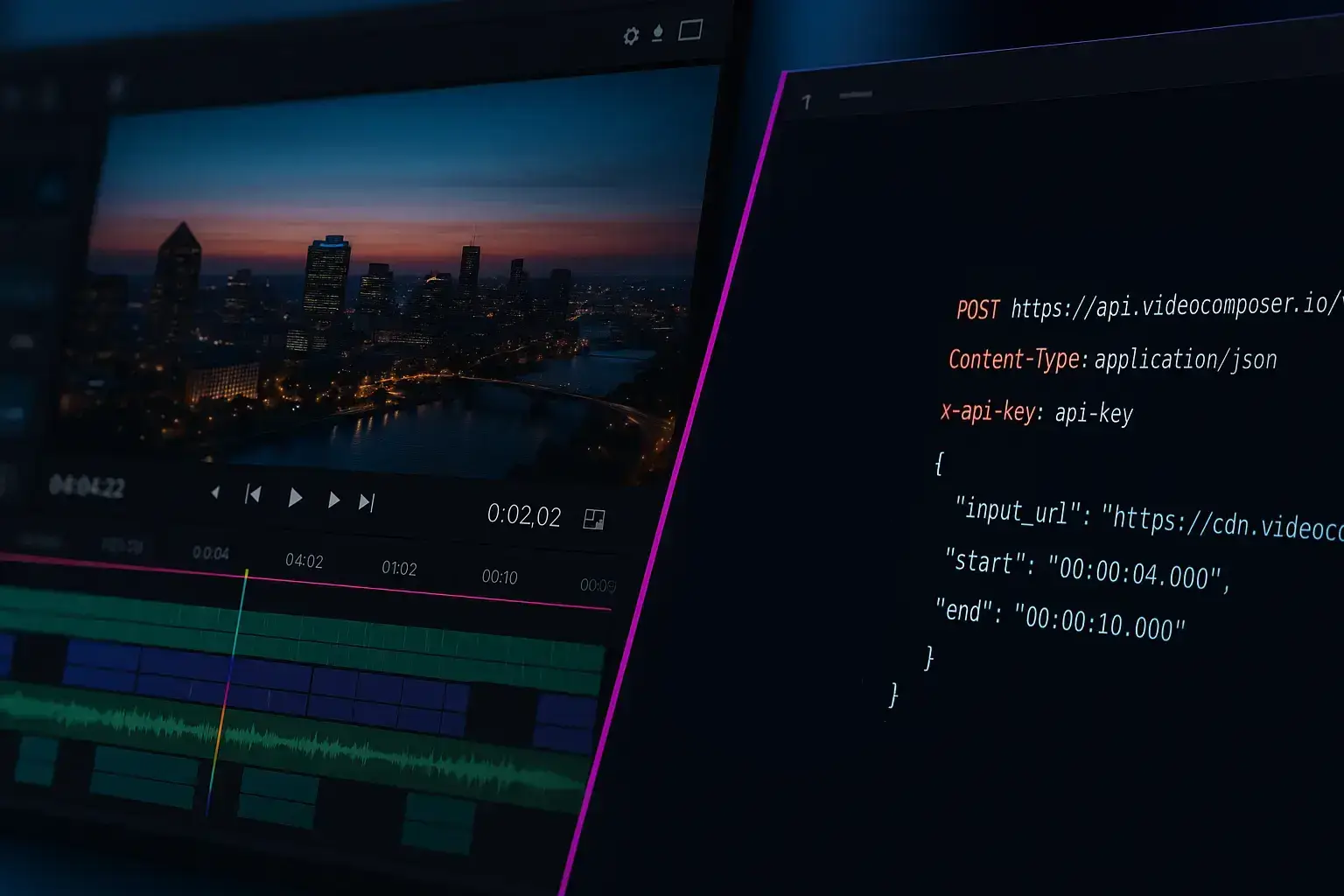
You can also automate GIF creation with the API. Submit jobs programmatically and use webhooks or job polling to collect finished outputs, making it easy to generate GIFs as part of a workflow.
If your source file is not MP4, WebM, MOV, or AVI, run it through the general converter first. Keeping inputs consistent prevents failed jobs and makes output sizes easier to predict.
GIFs are designed for short, silent previews. For longer clips or anything that needs audio, keep a companion MP4 output alongside the GIF so viewers can choose the right format for the moment.
When your video to gif job completes, you will receive a downloadable output URL. You can save the result locally, share it with a teammate, or feed it into another tool such as the trimmer or converter. For repeatable workflows, use the API to store outputs in your own system and automate the next step.
WebM sources usually convert cleanly, but if you see glitches or rotation issues, re-encode to MP4 first and try again. A clean source helps keep GIFs consistent.
GIFs loop by default. If you need custom playback or pause controls, embed the GIF in an environment where you can control looping behavior.
If the GIF feels too large, reduce the output resolution or trim the input further. For motion-heavy scenes, consider keeping an MP4 version for smooth playback.
The browser tool supports MP4, WebM, MOV, and AVI. For other formats, convert them to MP4 or WebM first and then create the GIF.
Rotation metadata can be handled differently by encoders. If you see an incorrect orientation, re-encode the source to MP4 before converting.
GIFs typically loop by default. If you need custom playback behavior, embed the GIF where you control the loop settings.
GIFs use limited colors compared to video. Short clips and simpler scenes retain the best fidelity.
Lower resolutions reduce file size and load faster. Use the smallest size that still shows the detail you need.
No, VideoComposer does not add a watermark to your output.
Yes. Submit jobs through the API and retrieve results by job ID or webhook notifications.
If you generate GIFs regularly, the API can handle the same workflow at scale. Submit an input URL, set out_format=gif, and receive the output URL when the job finishes.
Pair the converter with the trimming endpoint to control the exact section you turn into a GIF.
Store output URLs in your app to display GIF previews in dashboards, docs, or support tools without manual uploads.
Turn MP4 clips into lightweight GIFs for demos, memes, and product walkthroughs.
Encode or convert video to MP4, WebM, or GIF in minutes — no watermark, no install. Automate with our API.
Trim the beginning and end of a video — no watermark, clean exports every time.
Drag and drop a file or paste a video URL
or click to browse
Maximum file size: 500MB signed in, 50MB as a guest
Use a full file link like https://.../video.mp4 — YouTube, Vimeo, and Drive/Dropbox page links can't be processed. Signed CDN links can omit the extension.
Choose output format and optional settings