Guide
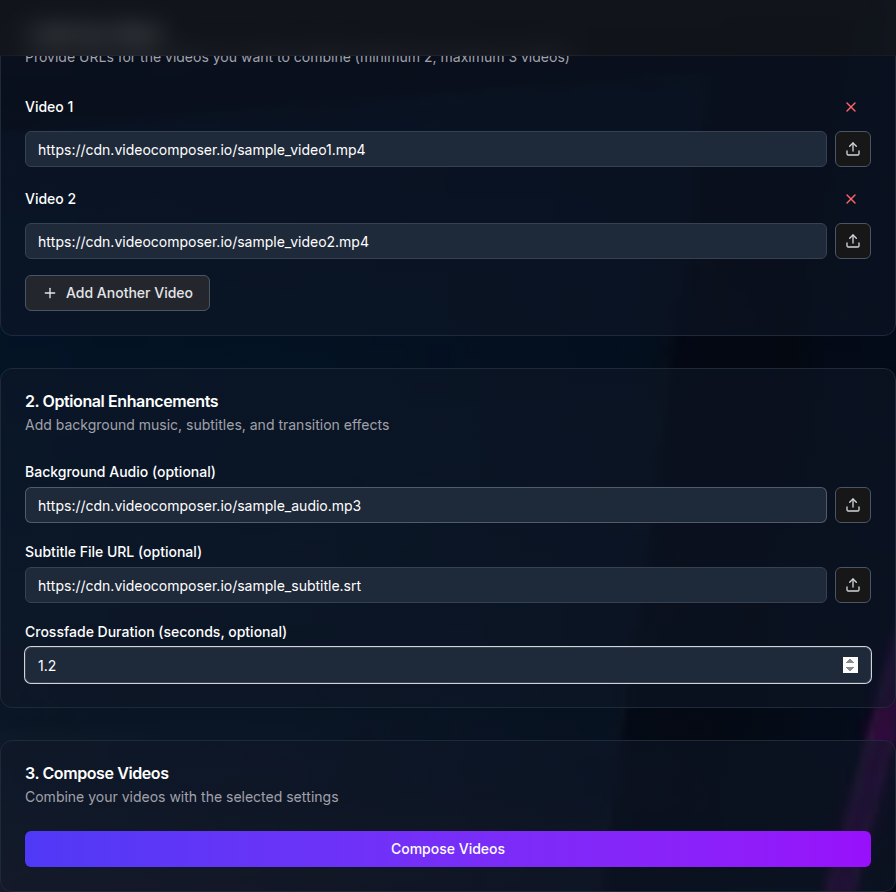
Join clips into one MP4 and enhance them with audio and captions.
For the smoothest merge, keep input videos in the same format and resolution. If formats differ, convert them to a common format first.
When inputs match in size and frame rate, the merged output looks more consistent and avoids black bars or stretched frames.
You can provide a separate audio URL to mix into the merged output. Subtitles can be burned into the video using an SRT or VTT file. Make sure subtitle files are UTF-8 encoded for best results.
If you include external audio, the final output length will typically match that audio track. Plan your audio length to fit the combined clips.
If you use crossfade transitions, keep them short for a clean handoff between clips. Crossfades require re-encoding and can add processing time.
Order clips intentionally. A quick test merge helps you confirm pacing before running a longer job.
The merged output is an MP4 that combines all clips in order. If you want a different format, convert the merged result after the job completes.
Longer total duration means longer processing. Consider merging in stages if you have a very large set of clips.
If the merge fails, verify that every URL is publicly accessible and that each file is in a compatible format. Converting inputs to MP4 usually resolves mismatches.
If subtitles appear out of sync, check the timecodes in the SRT or VTT file and confirm the clip order.
The compose tool expects video URLs and produces MP4 output. Anonymous users may have lower limits on the number of inputs.
For best results, keep inputs in the same format and resolution before merging.
If you add background audio, make sure the track length matches the combined clip duration. This keeps the output aligned and avoids unexpected cutoffs.
For narration or music, trim the audio first so it fits the final timeline.
Before submitting, confirm the inputs and optional files are ready. A quick checklist avoids failed merges.
Merging works well for highlight reels, product walkthroughs, or multi-part lessons. It is also a simple way to turn user-submitted clips into a single review file.
If you need a branded output, you can merge first and then apply a watermark in a second step.
Download the merged MP4 and store it where your team can access it. If you need a different format, run the converter on the merged output.
Keep the original clips in case you want to reorder or edit later.
Use the API to merge videos programmatically. Submit a list of inputs and optional audio or subtitle files, then poll the job status endpoint for the output URL.
Combine multiple video clips online free, without a watermark. Add audio, burn subtitles, and apply crossfade transitions.
Use POST /video/compose with inputs[] and optional audio_url/subtitle_url.