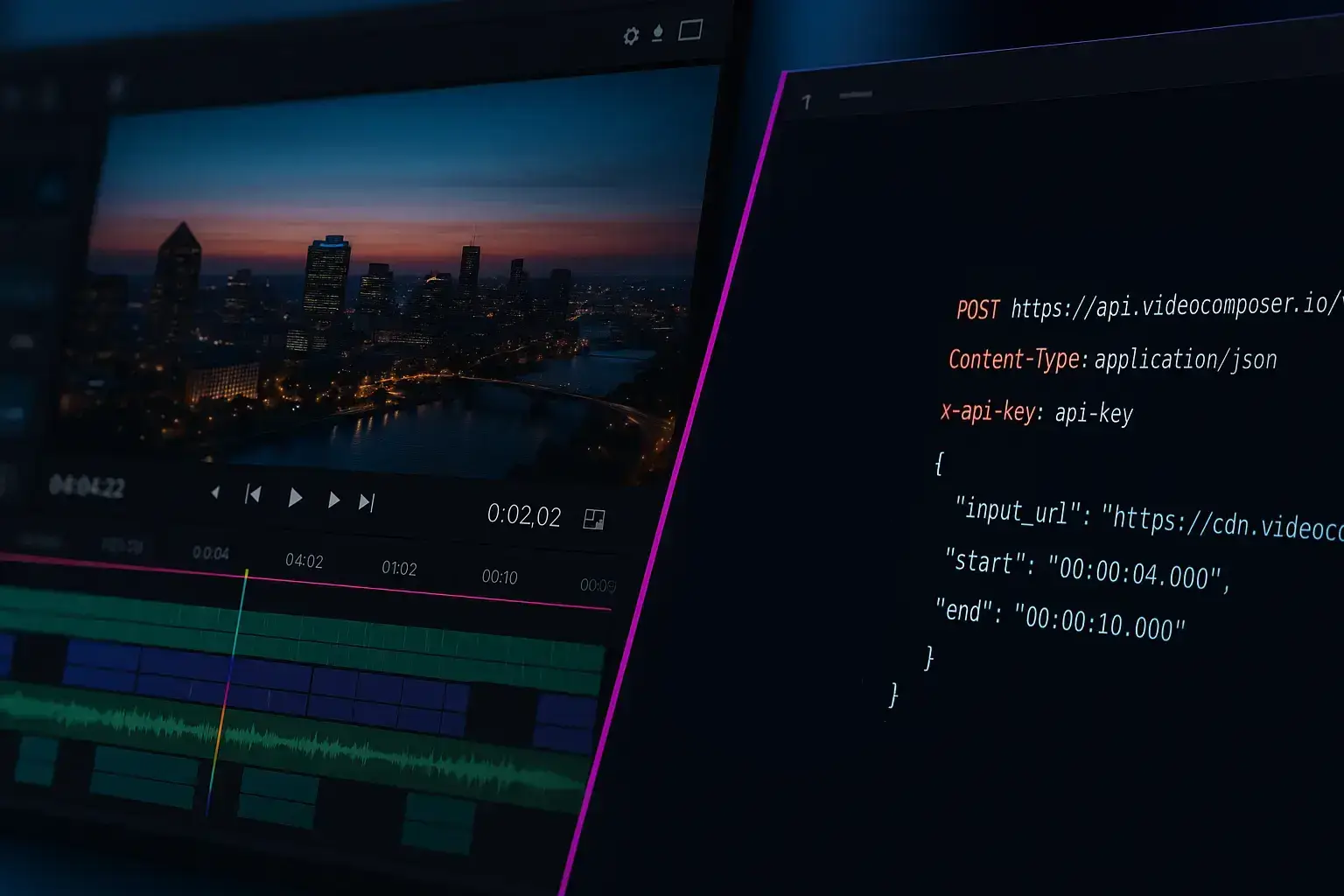
Cut MP4 clips precisely — no watermark, clean output for sharing, support tickets, or product demos.
Use the toolTo cut MP4 online, paste a direct MP4 URL or upload the file, set a start and end timestamp, and submit the job — VideoComposer's MP4 cutter returns a clean MP4 clip in your browser, free and without a watermark. No software install or account is required for a quick cut.
MP4 is the most common video format on the web, so cutting MP4 clips accurately is a routine task for teams and creators alike. This MP4 cutter extracts a clean segment by start and end time and returns a new MP4 file that's ready to share, with no extra format juggling.
The cutter favors speed by using keyframe-aligned cuts. That keeps processing fast and preserves quality, but it can shift the cut slightly on some files. If you require exact frame accuracy, re-encoding the clip is the best option, and a precise mode can be added later.
For teams that cut MP4 clips frequently, the API enables automation and consistent results. Submit multiple jobs programmatically and track outputs without manual uploads.
Because MP4 is supported by nearly every player and platform, keeping MP4 output avoids compatibility issues when you share results in chat tools, support systems, or review platforms.
When your mp4 cutter job completes, you will receive a downloadable output URL. You can save the result locally, share it with a teammate, or feed it into another tool such as the trimmer or converter. For repeatable workflows, use the API to store outputs in your own system and automate the next step.
MP4 cutting avoids re-encoding, so it is fast once the file is uploaded. Large files still take time to upload, so smaller inputs lead to quicker results.
If an MP4 fails to process, re-encode it to a standard H.264 MP4. This resolves most compatibility issues and keeps cuts reliable.
If you are reviewing many large files, consider using smaller proxy MP4s for quick cuts and then reapply timestamps to the full files.
For broadcast-level accuracy, plan for a re-encoded workflow where exact frames matter.
Fast MP4 cutting aligns to keyframes. This preserves quality but can move the cut slightly. Adjust the time or re-encode for exact precision.
Yes. Anonymous users get 5 free jobs per day across all VideoComposer tools, including this MP4 cutter, with no signup required. Sign in for higher daily limits, or use the API for larger workflows.
Yes. The tool uses stream copy for speed, which avoids re-encoding.
Yes. The output is an MP4 file that you can download and share.
Embedded tracks may not be preserved in all cases. If you need advanced track handling, consider processing via the API or re-encoding.
In most cases the size should be similar or smaller. File size can vary if the original had unusual encoding settings.
Most H.264 MP4 files work well. If a file fails, re-encode it to a standard H.264 MP4 and try again.
No. VideoComposer never adds watermarks, logos, or branding to your output. The MP4 clip is clean and ready to share — even on the free tier.
Yes. Use the API to submit multiple trim jobs and track each by job ID.
If you manage large MP4 libraries, the API makes it easy to submit trimming jobs in bulk. You can integrate it into pipelines and retrieve output URLs automatically.
Pair trimming with conversion if you need consistent codecs across outputs.
Batch cutting is straightforward: loop through timestamps, submit jobs, and store each output URL for distribution or review.
Trim the beginning and end of a video — no watermark, clean exports every time.
Cut long videos into short clips — no watermark, fast results for social, demos, and highlights.
Encode or convert video to MP4, WebM, or GIF in minutes — no watermark, no install. Automate with our API.
Drag and drop a file, or paste a direct video file URL — not a YouTube, Vimeo, or Drive page link
or click to browse
Maximum file size: 500MB signed in, 50MB as a guest
Use a full file link like https://.../video.mp4 — YouTube, Vimeo, and Drive/Dropbox page links can't be processed. Signed CDN links can omit the extension.
Specify the start and end times for your trimmed video