Turn MP4 clips into lightweight GIFs for demos, memes, and product walkthroughs.
Use the toolMP4 to GIF is one of the fastest ways to share a short moment without asking someone to play a video. VideoComposer turns an MP4 clip into a GIF you can drop into docs, chat threads, bug reports, or social posts. It is simple to use and designed for quick turnarounds.
The GIF output is optimized for easy sharing. If you want a tighter clip, trim the video first and then convert the trimmed segment to GIF. This keeps file size manageable and focuses attention on the exact moment you want to show.
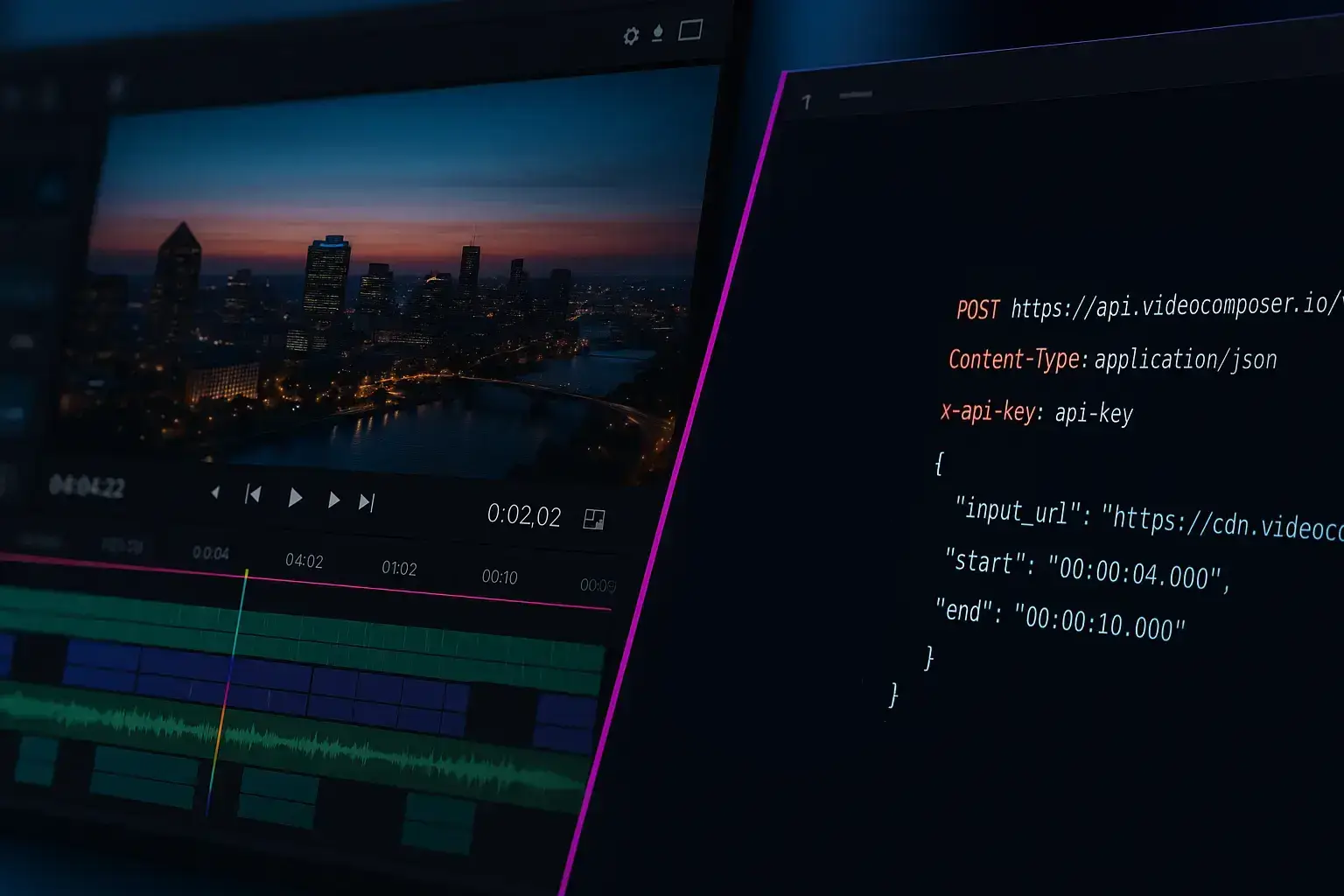
If you need to generate many GIFs, the API gives you a repeatable workflow. Submit jobs programmatically, track status, and store the output in your own pipeline or asset library.
MP4 clips with heavy motion can create large GIFs. When possible, choose a steady segment and keep the dimensions smaller. The converter applies GIF-friendly settings that keep files lighter, but fast action can still increase size.
If your MP4 includes audio, remember that GIF output is silent. Keep the MP4 for playback and use the GIF as a visual preview in docs, release notes, or chat updates.
When your mp4 to gif job completes, you will receive a downloadable output URL. You can save the result locally, share it with a teammate, or feed it into another tool such as the trimmer or converter. For repeatable workflows, use the API to store outputs in your own system and automate the next step.
GIFs are limited to 256 colors, so busy scenes may look noisy. Clean UI recordings, product demos, and simple motion tend to look best.
For screen recordings, a width around 480 to 720 pixels usually balances readability and file size. Start there and adjust based on your layout.
GIF frame rates are optimized for size, so fast motion can look less smooth. If motion clarity matters, keep the MP4 available for playback.
Keep the clip short and reduce the output dimensions. Lower resolutions usually cut file size dramatically while keeping the motion clear.
GIFs use limited frame rates and colors. Shorter clips and smaller dimensions often look smoother. For high quality motion, use MP4 instead.
Yes, trim the MP4 first using the trimmer tool and then convert the trimmed output to GIF.
No. GIFs do not support audio, so the output will be silent.
Short is best. Aim for a few seconds that capture the key action without unnecessary frames.
Yes, the tool works in modern mobile browsers. Large files may upload faster on Wi-Fi.
The API lets you submit multiple jobs programmatically. Send one request per file and track each job by ID.
If you need many GIFs, the API lets you submit MP4 files for conversion and retrieve output URLs automatically. This is great for dashboards, documentation workflows, and support tooling.
Use the convert endpoint with out_format=gif and keep each clip short for the best size-to-quality ratio.
For the cleanest output, automate trimming first and then convert the trimmed segment to GIF in a follow-up job.
Any MP4, WebM, MOV, or AVI video to GIF: create loopable animations for sharing and support.
Encode or convert video to MP4, WebM, or GIF in minutes — no watermark, no install. Automate with our API.
Trim the beginning and end of a video — no watermark, clean exports every time.
Drag and drop a file or paste a video URL
or click to browse
Maximum file size: 500MB signed in, 50MB as a guest
Use a full file link like https://.../video.mp4 — YouTube, Vimeo, and Drive/Dropbox page links can't be processed. Signed CDN links can omit the extension.
Choose output format and optional settings