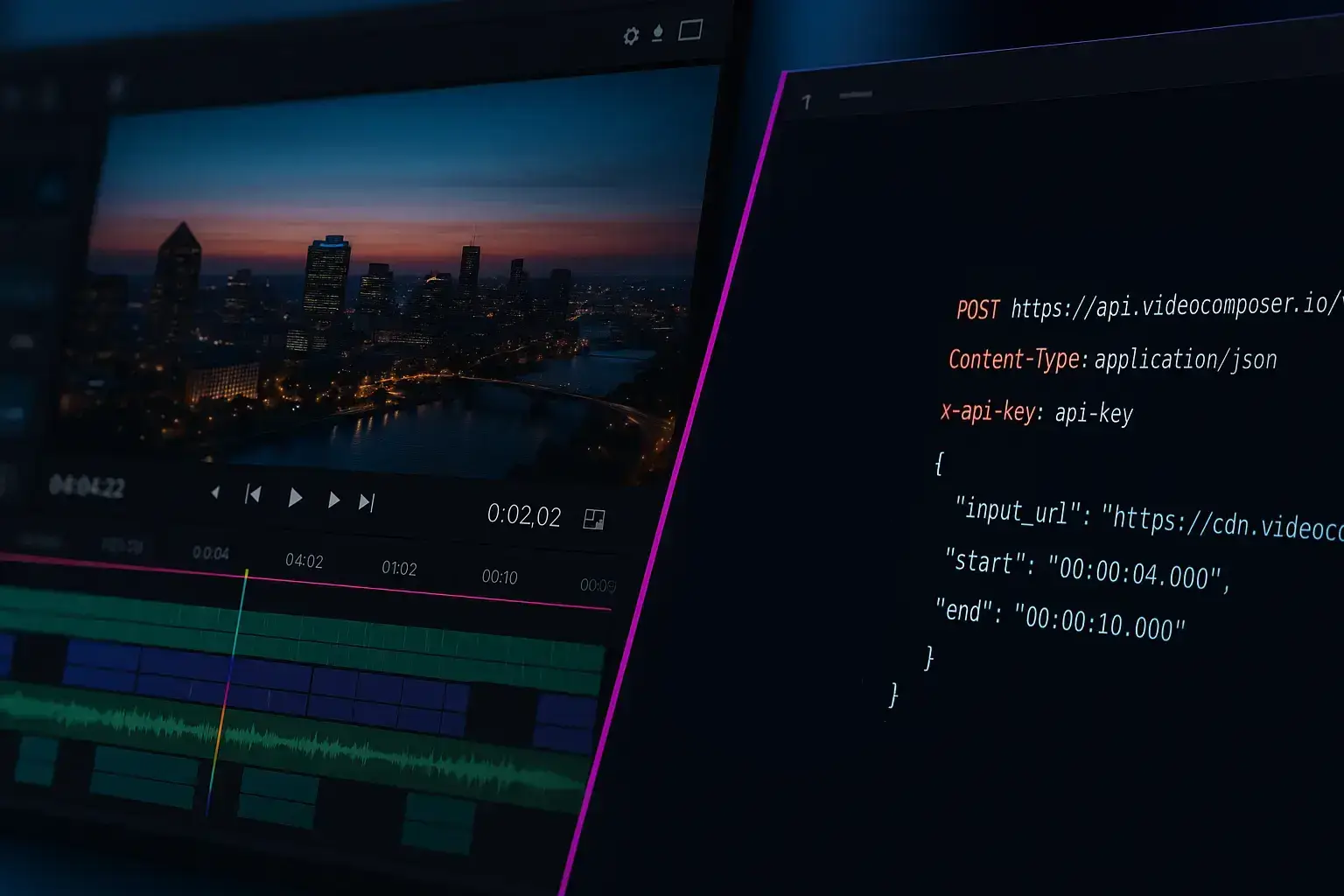
Cut long videos into short clips — no watermark, fast results for social, demos, and highlights.
Use the toolCutting a video usually means extracting a specific segment from the middle of a longer clip. With VideoComposer, you pick a start and end time and create a clean clip without leaving the browser. It is fast, simple, and designed for quick edits when you only need a portion of the original.
Because the cutter uses fast trimming, it works well for highlights, short demos, or support clips. The result is a standalone MP4 you can share or upload. If you need multiple clips, you can repeat the process or automate it via the API.
This page uses the same underlying trimming engine as the trimmer, but the intent is focused on extracting a segment. It is a practical way to create a single clip from a longer recording.
When you need a clip from the middle of a long video, a cutter keeps only the important segment and removes everything else. This is ideal for highlights, demos, or isolating a moment for troubleshooting.
Cuts are keyframe-aligned for speed, so a clip can start slightly before or after the exact timestamp. If you need frame-perfect accuracy, re-encoding is required. For most use cases, small timestamp adjustments are enough.
When your video cutter job completes, you will receive a downloadable output URL. You can save the result locally, share it with a teammate, or feed it into another tool such as the trimmer or converter. For repeatable workflows, use the API to store outputs in your own system and automate the next step.
Use a video player to locate the exact timestamps you want, then copy those times into the cutter. This reduces guessing and speeds up iteration.
If you need several clips from the same file, plan the segments ahead and submit one job per clip. This keeps outputs clean and easy to track.
Label outputs clearly when you cut multiple segments from one source. This avoids confusion when sharing or merging clips later.
Trimming typically removes the start or end of a clip, while cutting usually means extracting a segment from the middle. The workflow is similar: set start and end times.
Yes. Choose a start time and end time that isolate the middle segment you want to export.
The browser tool creates one clip per job. For multiple clips, repeat the process or automate via the API.
Fast trimming aligns to keyframes, which can shift the cut slightly. Adjust the timestamps if you need a tighter result.
Yes, but processing time increases with resolution and length. Consider trimming shorter segments for faster results.
Yes. The tool works in modern mobile browsers, though large uploads may be easier over Wi-Fi.
No. VideoComposer never adds watermarks, logos, or branding to your output clips. The result is clean and ready to share — even on the free tier.
Yes. The API supports the same start and end timestamp trimming as the browser tool.
If you need to cut clips frequently, the API lets you submit start and end timestamps programmatically and capture the output URL when the job finishes.
You can combine cutting with conversion or merging to build full workflows without manual steps.
Store your timestamps and submit jobs in batches to scale clip extraction across many files.
Trim the beginning and end of a video — no watermark, clean exports every time.
Cut MP4 clips precisely — no watermark, clean output for sharing, support tickets, or product demos.
Combine multiple video clips online free, without a watermark. Add audio, burn subtitles, and apply crossfade transitions.
Drag and drop a file, or paste a direct video file URL — not a YouTube, Vimeo, or Drive page link
or click to browse
Maximum file size: 500MB signed in, 50MB as a guest
Use a full file link like https://.../video.mp4 — YouTube, Vimeo, and Drive/Dropbox page links can't be processed. Signed CDN links can omit the extension.
Specify the start and end times for your trimmed video