Guide
Get clean MP4 clips and understand keyframe limits.
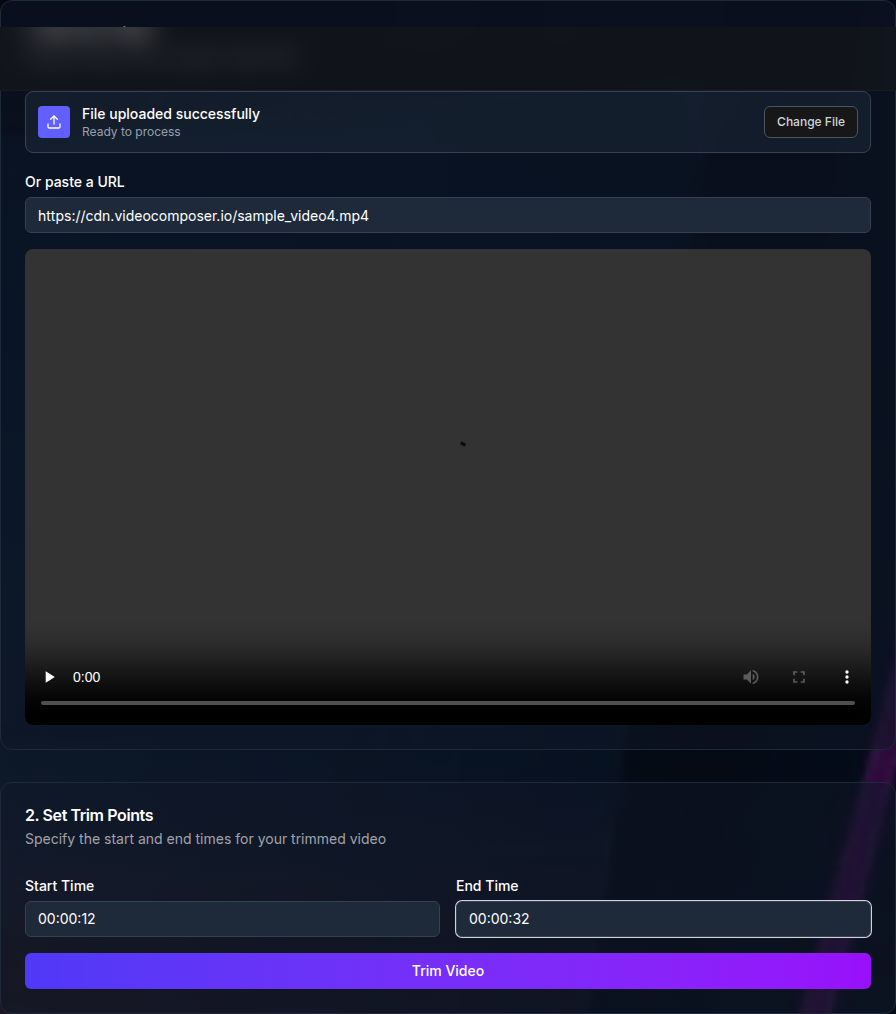
Want to skip the explanation and do it now? Open the MP4 Cutter Online. Or browse all guides.
MP4 cutting is fast when it aligns to keyframes. That keeps quality high and avoids re-encoding, but it can land slightly before or after your exact timestamp. For most uses, this is a good tradeoff.
Keyframes are the points where full frames are stored. Cuts that land between keyframes may snap to the nearest keyframe for speed.
If your cut feels off, adjust the timestamp by a small amount to catch the nearest keyframe. For true frame-level precision, re-encoding is required. This can be done in your own workflow or added as a future feature.
A simple workflow is to trim a slightly wider segment, check the result, then adjust by a second or two until it matches the intended frame.
MP4 sources with standard H.264 encoding tend to cut cleanly. If your MP4 comes from a screen recorder or a phone, re-encode it to a standard MP4 before cutting if you see errors.
Consistent resolution and frame rate make cuts more predictable, especially if you plan to merge clips later.
Cutting and trimming use the same basic idea: you set a start and end time. The difference is mostly in how you plan to use the output.
If you need several clips from one file, repeat the cut process for each segment and keep your timestamps organized.
Fast cuts preserve the original quality because they do not re-encode the video. This is why keyframe-aligned cuts are the default for speed.
If you need a precise cut, plan for a re-encode step in your own pipeline or request a precise mode in the future.
The MP4 cutter accepts MP4, WebM, MOV, and AVI input and always produces MP4 output. Because the cut is stream-copied rather than re-encoded, sources with unusual or legacy codecs can still fail — convert those to MP4 first.
Anonymous usage is rate limited. Authenticated usage is limited by available credits on your account.
Cuts that feel off are usually caused by keyframe alignment. Adjust the start time slightly and try again.
Another mistake is cutting from files that use unusual codecs. Converting to a standard MP4 fixes most failures.
Use this checklist to make sure your cut will export cleanly the first time.
MP4 cutting is useful for pulling short highlights from a longer recording, creating a clip for social media, or isolating a bug reproduction step.
If you need multiple clips from one file, keep a simple list of timestamps and process them one by one for predictable results.
The API supports MP4 trimming with the same timestamps. Submit jobs in bulk and track outputs by job ID to build repeatable clip pipelines.
Cut MP4 clips precisely — no watermark, clean output for sharing, support tickets, or product demos.
Use POST /video/trim for MP4 clips and track results with /jobs/:id.