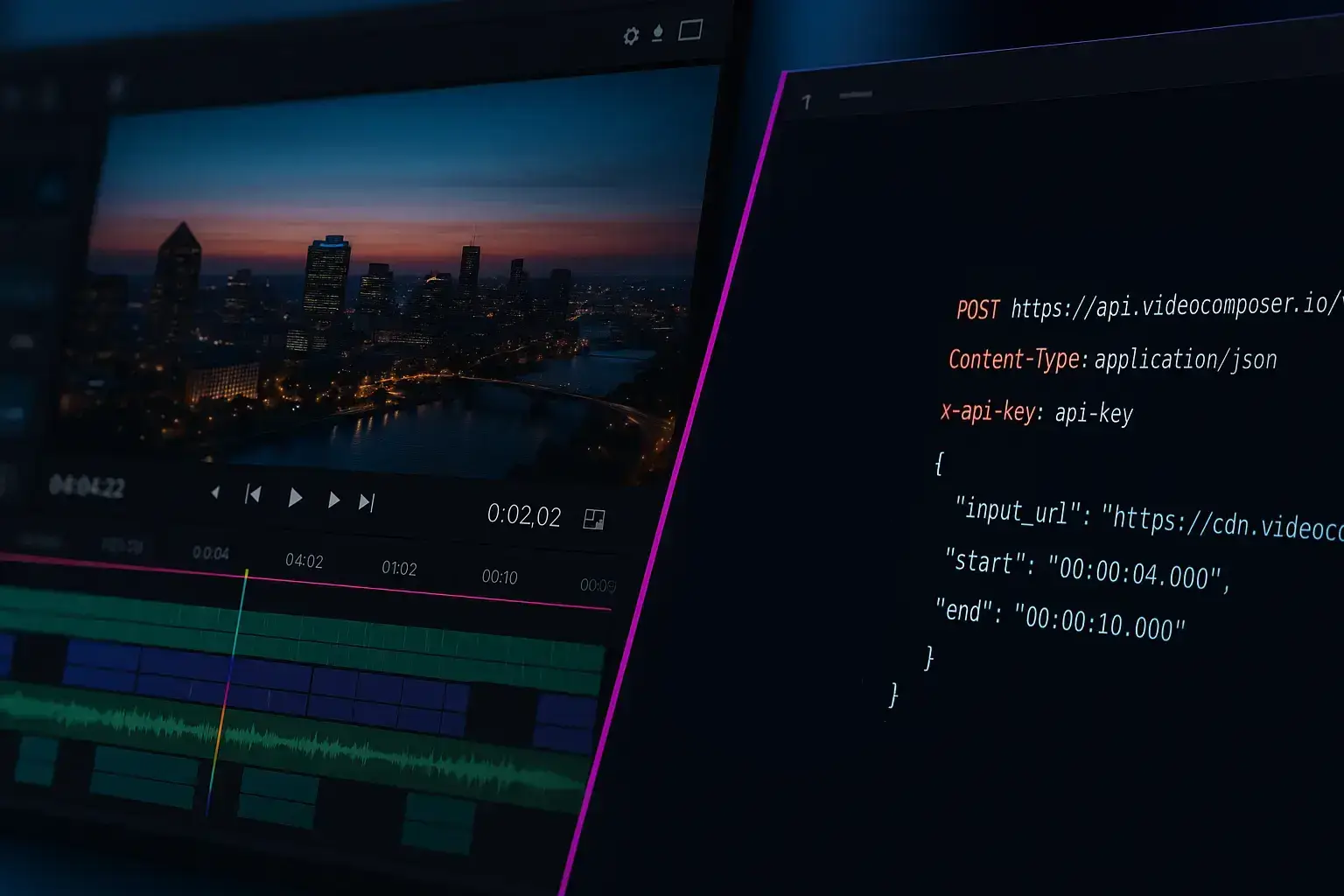
Encode or convert video to MP4, WebM, or GIF in minutes — no watermark, no install. Automate with our API.
Use the toolVideoComposer makes it easy to convert videos into the formats you actually need. Use the converter when a platform requires MP4, when your site performs better with WebM, or when you want a lightweight GIF preview for support, docs, or social posts. The tool is designed for quick, reliable format changes without the friction of desktop software.
You can select the output format and optionally set width, height, and bitrate for MP4 or WebM. These settings help you standardize quality across a library of assets, reduce file size for faster delivery, or create consistent resolutions for landing pages and documentation. If you prefer to keep things simple, use the default settings and let the converter handle the rest.
Every conversion runs as an asynchronous job. That means you can start a conversion, keep working, and return to download the result when it is ready. For teams and developers, the same workflow is available through the API so you can automate conversions from your product, pipeline, or CMS and receive status updates when jobs finish.
Conversion is also a normalization step. When every asset shares the same format and dimensions, playback issues drop and publishing is easier. If you are unsure where to start, choose MP4 at the original resolution and adjust bitrate later if file size is too large. This keeps quality high while giving you flexibility.
If you plan to chain tools, convert first to a consistent format before trimming, merging, or watermarking. That reduces errors and improves merge success because inputs match. The converter was built with this workflow in mind, so you can treat it as the first step in a clean, repeatable pipeline.
When your video converter online free job completes, you will receive a downloadable output URL. You can save the result locally, share it with a teammate, or feed it into another tool such as the trimmer or converter. For repeatable workflows, use the API to store outputs in your own system and automate the next step.
If you are unsure which format to choose, start with MP4 because it plays everywhere. WebM is excellent for modern browsers and smaller files, while GIF should be reserved for short, silent previews.
When adjusting bitrate, start higher and reduce until size is acceptable. Preserve the original aspect ratio when setting width or height to avoid stretching or distortion.
Preview a short output before converting a full library. This confirms the best settings for size and quality without wasting time on large batches.
The browser tool accepts MP4, WebM, MOV, and AVI inputs. If your source is in another format, convert it to MP4 or WebM first, or use the API with a direct file URL.
You can export MP4, WebM, or GIF. MP4 is best for broad playback support, WebM is great for smaller web delivery, and GIF is useful for short looping previews.
Any conversion can affect quality depending on the source and settings. Use higher bitrates and avoid unnecessary scaling if you need to preserve detail.
File size depends on codec, resolution, and bitrate. MP4 and WebM compress differently, and GIFs can be large for long clips. Adjust bitrate or resolution to control size.
Processing time varies by video length and settings. Short clips finish quickly, while longer or higher resolution files take more time.
Browser uploads are capped at 50MB for anonymous/guest use and 500MB when signed in. There is no fixed duration limit on the video itself, but longer videos take more processing time — anonymous/guest jobs are capped at 30 minutes of processing time. For larger or longer files, use the API with a direct video URL instead of a browser upload.
No. VideoComposer never adds watermarks, logos, or branding to your converted videos. The output is clean and ready to use — even on the free tier.
Yes. The API supports the same conversion options and runs jobs asynchronously so you can automate conversions at scale.
If you are converting videos regularly, the API lets you submit jobs programmatically and receive status updates when they finish. This is ideal for product pipelines, media processing, or scheduled content workflows.
Use direct file URLs, pass output settings, and track results by job ID. You can also attach webhooks to avoid polling for completion.
Because jobs are asynchronous, you can queue conversions in bulk and process results when they finish, keeping your app responsive while video work runs in the background.
Turn MP4 clips into lightweight GIFs for demos, memes, and product walkthroughs.
Any MP4, WebM, MOV, or AVI video to GIF: create loopable animations for sharing and support.
Trim the beginning and end of a video — no watermark, clean exports every time.
VideoComposer is a free online video converter with no watermark added to your exports — ever. No signup or account is required for basic use. Upload your video or paste a direct URL, choose the output format (MP4, WebM, or GIF), and download the converted file in minutes. No software download needed.
Free users get 5 video jobs per day across all tools — convert, merge, trim, and watermark videos at no cost. Sign in for higher daily limits and priority processing. For automated pipelines, use the VideoComposer REST API to submit conversion jobs programmatically.
The browser tool converts between these formats:
You can also optionally set output width, height, and bitrate for MP4 or WebM outputs to standardize quality across a library of assets or reduce file size for faster delivery.
Drag and drop a file or paste a video URL
or click to browse
Maximum file size: 500MB signed in, 50MB as a guest
Use a full file link like https://.../video.mp4 — YouTube, Vimeo, and Drive/Dropbox page links can't be processed. Signed CDN links can omit the extension.
Choose output format and optional settings