Guide
Remove unwanted seconds from the start or end in minutes.
Trimming is ideal when you need to remove a short intro, outro, or dead space. It is fast, preserves quality, and produces a clean clip for sharing or conversion.
If your goal is to cut a single segment from the start or end, trimming is the fastest path. For multiple clips, repeat the trim workflow for each segment.
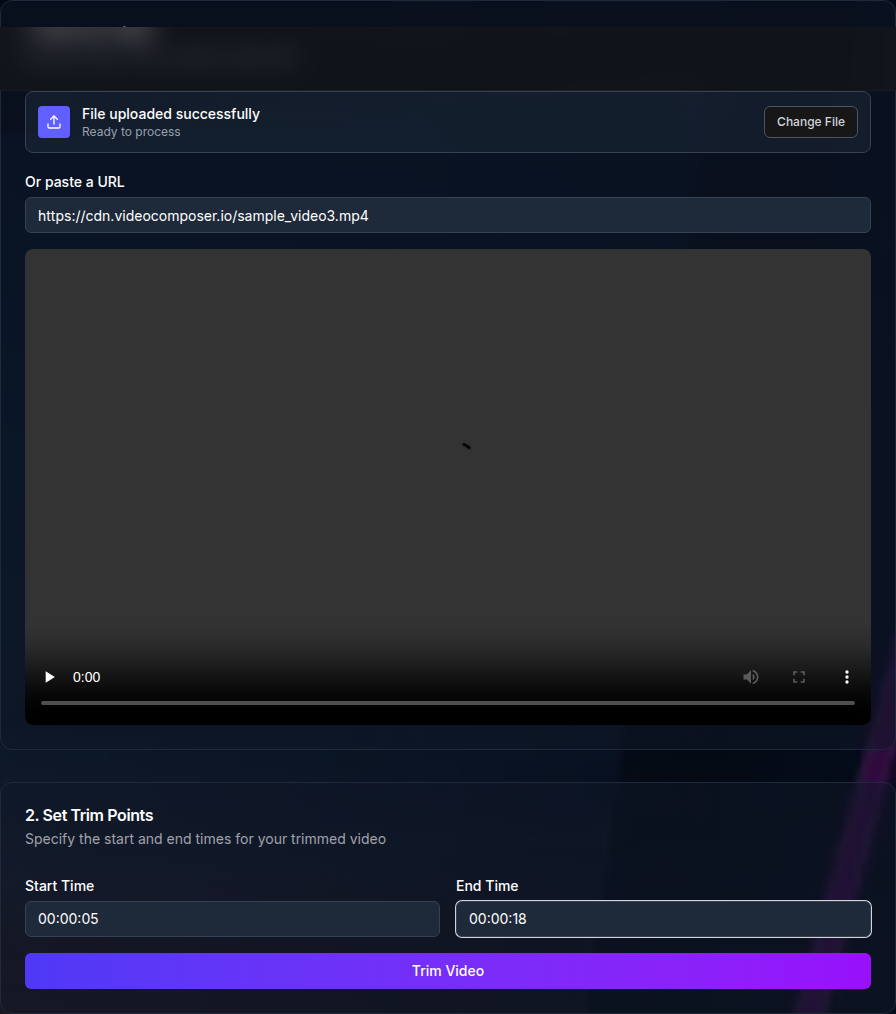
The trimmer uses HH:MM:SS timestamps for start and end. Start by marking a slightly wider range, then tighten the times to match the exact clip you want.
If you are working from a script or transcript, convert timestamps to the same HH:MM:SS format to avoid mistakes.
Fast trims align to keyframes for speed. That can shift the cut slightly in either direction. If you need frame-perfect precision, re-encoding is the best approach.
Trimming does not usually change quality because it keeps the original encoding. This means you get a clean clip without re-encoding artifacts.
File size is proportional to duration. A shorter clip is smaller, which helps when sharing or sending through chat tools.
Trimming removes time from the start and end. Cutting usually means extracting a clip from the middle, which you can also do by setting start and end times.
Converting changes the file format or size. If you need a different format after trimming, run a conversion step on the trimmed output.
If the cut feels early or late, adjust the timestamps by a second or two to land on a better keyframe. This is common with compressed video.
If the output fails, re-encode the source to a standard MP4 and try again. Unusual codecs can cause issues with trimming.
The browser tool supports MP4, WebM, MOV, and AVI inputs and outputs MP4. Anonymous usage is rate limited, and authenticated accounts use available credits.
If you work with other formats, convert them to MP4 first for the smoothest trimming experience.
The most common mistake is swapping start and end times. Always confirm that the start time is earlier than the end time.
Another frequent issue is choosing a clip that is too long for the intended use. Shorter trims are easier to share and review.
Run through this list before you submit the job to save time.
The API supports the same trim parameters. Submit start and end times, then retrieve the output URL when the job completes. This is useful for batch processing or product workflows.
Trim the beginning and end of a video — no watermark, clean exports every time.
Use POST /video/trim and GET /jobs/:id to automate trimming.