
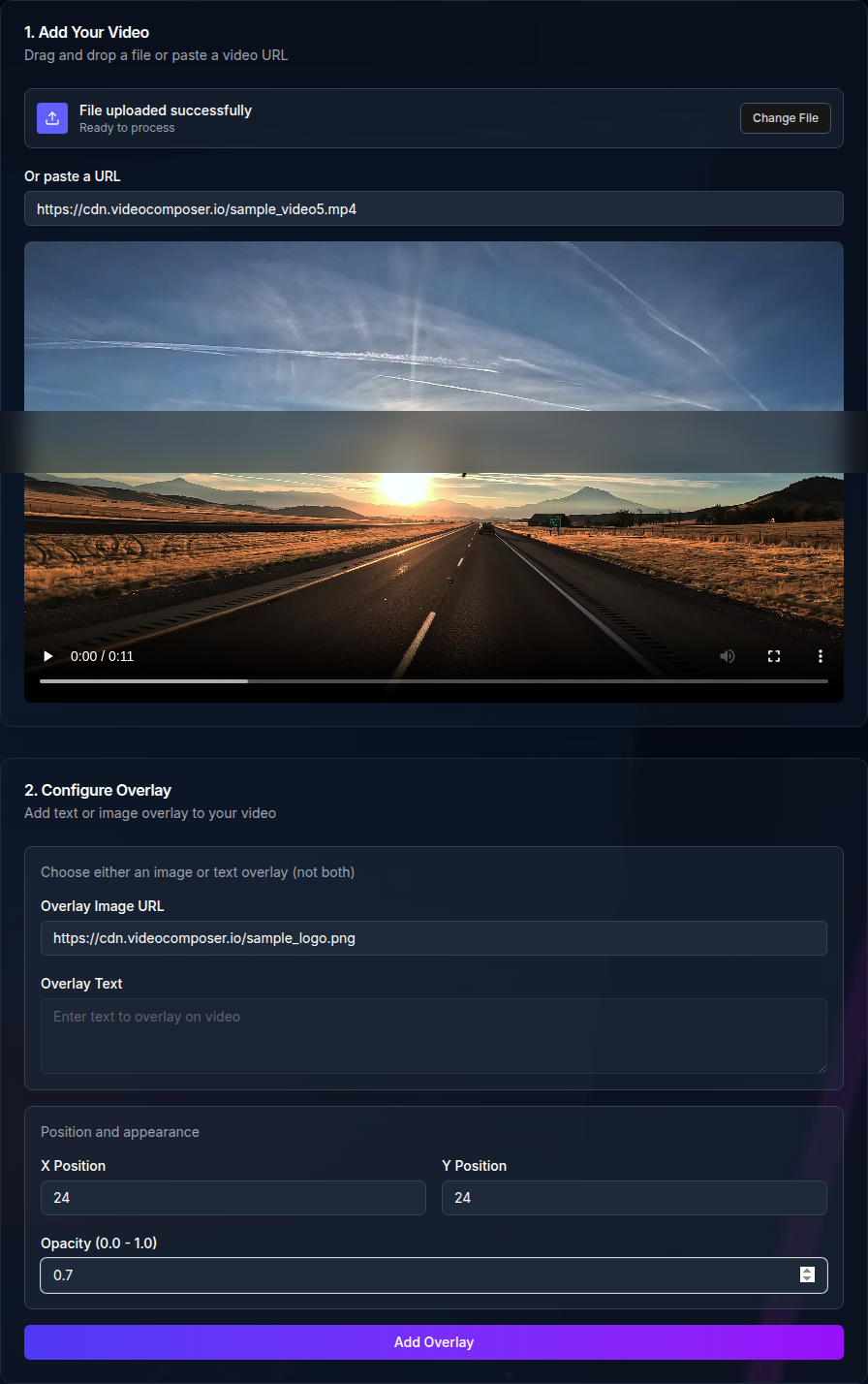
How Do You Add a Watermark to a Video Using an API?
You can add watermarks to videos programmatically using the VideoComposer API's /api/v1/watermark endpoint. Send your video file and watermark image via a POST request, specify position and opacity, and receive a watermarked output. This tutorial walks through the full implementation in curl, Node.js, and Python. Full API documentation is at /developers.
Why Add Watermarks to Videos Programmatically?
Manual watermarking in video editors does not scale. When you need consistent branding across dozens or hundreds of videos, an API-based approach is the only viable solution.
Key reasons to use a video watermark API:
- Brand consistency at scale — every video gets the same logo, same position, same opacity without manual steps
- Batch processing — apply watermarks to an entire library or all new uploads in a single pipeline run
- Automated workflows — trigger watermarking on video upload events, schedule runs overnight, or integrate into CI/CD pipelines for video content
- No manual editing — eliminate hours of repetitive work in Premiere, DaVinci, or iMovie for large video catalogs
What Do You Need Before You Start?
Before making your first API call, have these two things ready:
- An API key — generate one from the developers page. Your key goes in the
Authorizationheader as a Bearer token. - A watermark image — use a PNG with a transparent background. Transparency support is what makes a logo sit cleanly on video without a white box behind it.
You do not need to install any video libraries or configure codecs. The API handles all processing server-side.
Step 1: Basic Watermark API Call With curl
The simplest watermark request sends your video file and watermark image together. The position parameter controls placement, and opacity controls how transparent the overlay appears.
curl -X POST https://videocomposer.io/api/v1/watermark \
  -H "Authorization: Bearer YOUR_API_KEY" \
  -F "file=@video.mp4" \
  -F "watermark=@logo.png" \
  -F "position=bottom-right" \
  -F "opacity=0.85" \
  -F "output_format=mp4"
The response includes a download_url for the processed file and a job_id for status polling if the file is large. For a full list of parameters and response schemas, see the API reference at /developers.
Step 2: Node.js Implementation
This example uses the built-in fetch API available in Node.js 18+. No extra dependencies are needed beyond form-data for the multipart upload.
import { readFileSync } from 'fs';
import FormData from 'form-data';

const API_KEY = process.env.VIDEOCOMPOSER_API_KEY;
const API_URL = 'https://videocomposer.io/api/v1/watermark';

async function addWatermark(videoPath, watermarkPath, position = 'bottom-right') {
  const form = new FormData();
  form.append('file', readFileSync(videoPath), { filename: 'video.mp4' });
  form.append('watermark', readFileSync(watermarkPath), { filename: 'logo.png' });
  form.append('position', position);
  form.append('opacity', '0.85');
  form.append('output_format', 'mp4');

  const response = await fetch(API_URL, {
    method: 'POST',
    headers: {
      Authorization: `Bearer ${API_KEY}`,
      ...form.getHeaders(),
    },
    body: form,
  });

  if (!response.ok) {
    const error = await response.json();
    throw new Error(`API error ${response.status}: ${error.message}`);
  }

  const result = await response.json();
  console.log('Download URL:', result.download_url);
  return result;
}

// Usage
addWatermark('./source.mp4', './logo.png', 'bottom-right');
Store your API key in an environment variable — never hardcode credentials in source files. The example reads from process.env.VIDEOCOMPOSER_API_KEY.
Step 3: Python Implementation
This example uses the requests library, which is the standard HTTP client for Python.
import os
import requests

API_KEY = os.environ.get("VIDEOCOMPOSER_API_KEY")
API_URL = "https://videocomposer.io/api/v1/watermark"

def add_watermark(video_path: str, watermark_path: str, position: str = "bottom-right") -> dict:
    headers = {
        "Authorization": f"Bearer {API_KEY}",
    }

    with open(video_path, "rb") as video_file, open(watermark_path, "rb") as watermark_file:
        files = {
            "file": ("video.mp4", video_file, "video/mp4"),
            "watermark": ("logo.png", watermark_file, "image/png"),
        }
        data = {
            "position": position,
            "opacity": "0.85",
            "output_format": "mp4",
        }

        response = requests.post(API_URL, headers=headers, files=files, data=data)

    response.raise_for_status()  # raises HTTPError for 4xx/5xx responses
    result = response.json()
    print(f"Download URL: {result['download_url']}")
    return result


# Usage
add_watermark("source.mp4", "logo.png", "bottom-right")
The raise_for_status() call ensures exceptions are raised for error responses. Wrap this in a try/except block in production to handle failures gracefully.
What Watermark Positions Are Available?
The position parameter accepts five placement values. Choose based on where your brand identity sits in your design system.
| Position Value | Placement | Common Use Case |
|---|---|---|
top-left | Upper left corner | News-style lower-thirds inverted for branding |
top-right | Upper right corner | Channel branding for streaming content |
bottom-left | Lower left corner | Attribution or source credit |
bottom-right | Lower right corner | Most common brand logo placement |
center | Center of frame | Copyright protection overlays |
All positions respect a default margin from the video edges. The opacity parameter accepts values from 0.0 (fully transparent) to 1.0 (fully opaque). A value of 0.8–0.9 is typical for brand logos.
How Do You Watermark Multiple Videos in a Batch?
For batch watermarking, loop over your video files and submit each one to the API. Use async job IDs to track progress rather than waiting synchronously for each file.
Node.js batch watermarking example:
import { readFileSync } from 'fs';
import { readdir } from 'fs/promises';
import path from 'path';
import FormData from 'form-data';

const API_KEY = process.env.VIDEOCOMPOSER_API_KEY;

async function submitWatermarkJob(videoPath, watermarkPath) {
  const form = new FormData();
  form.append('file', readFileSync(videoPath), { filename: path.basename(videoPath) });
  form.append('watermark', readFileSync(watermarkPath), { filename: 'logo.png' });
  form.append('position', 'bottom-right');
  form.append('opacity', '0.85');
  form.append('async', 'true'); // non-blocking — returns job_id immediately

  const response = await fetch('https://videocomposer.io/api/v1/watermark', {
    method: 'POST',
    headers: { Authorization: `Bearer ${API_KEY}`, ...form.getHeaders() },
    body: form,
  });

  const result = await response.json();
  return result.job_id;
}

async function pollJobStatus(jobId) {
  const url = `https://videocomposer.io/api/v1/jobs/${jobId}`;
  while (true) {
    const response = await fetch(url, {
      headers: { Authorization: `Bearer ${API_KEY}` },
    });
    const job = await response.json();
    if (job.status === 'complete') return job.download_url;
    if (job.status === 'failed') throw new Error(`Job ${jobId} failed: ${job.error}`);
    await new Promise((r) => setTimeout(r, 5000)); // poll every 5 seconds
  }
}

async function batchWatermark(videoDir, watermarkPath) {
  const files = (await readdir(videoDir)).filter((f) => f.endsWith('.mp4'));
  console.log(`Submitting ${files.length} watermark jobs...`);

  // Submit all jobs concurrently
  const jobIds = await Promise.all(
    files.map((file) => submitWatermarkJob(path.join(videoDir, file), watermarkPath))
  );

  // Poll for completion
  const downloadUrls = await Promise.all(jobIds.map(pollJobStatus));
  console.log('All jobs complete. Download URLs:', downloadUrls);
  return downloadUrls;
}

batchWatermark('./videos', './logo.png');
Set async=true on each request so jobs are queued immediately rather than blocking. This lets you submit dozens of jobs in parallel and then poll for results. Check /pricing for concurrent job limits on your plan.
What Are the Best Practices for Video Watermarking?
Following these practices avoids the most common watermarking mistakes in production pipelines.
- Use transparent PNG files — watermark images with a solid white or black background will obscure video content. Export your logo as PNG-24 with alpha channel transparency.
- Size the watermark proportionally — a watermark that is 10–15% of the video width reads clearly without dominating the frame. Very large watermarks frustrate viewers.
- Choose a corner that does not conflict with subtitles or UI — bottom-center is used by most subtitle tracks; bottom-right clears that space. Top-left and top-right are usually safe choices.
- Test on a short clip before batch runs — submit one 10-second test clip to verify position and opacity before processing a large library. This saves time and API credits.
- Handle errors explicitly — API requests can fail due to network issues, unsupported formats, or file size limits. Implement retry logic with exponential backoff and log job IDs for failed requests so you can reprocess them.
API vs. Manual Watermarking: Which Should You Use?
Both approaches have valid use cases. The right choice depends on volume and workflow context.
| Factor | Manual Editing (Premiere, DaVinci, iMovie) | VideoComposer API |
|---|---|---|
| Setup time | Immediate — open editor, apply | 30-60 minutes to integrate |
| Time per video | 2-5 minutes per video | Under 1 minute per video at scale |
| Batch processing | Not practical beyond 5-10 videos | Built-in — loop hundreds of files |
| Consistency | Depends on manual steps each time | Identical output every run |
| Automation | Not possible | Trigger on upload, schedule runs |
| Cost | Editor software license | Per-operation API pricing |
| Technical skill | Low — visual tools | Moderate — code required |
| Best for | One-off branding needs, ad hoc work | Ongoing pipelines, large catalogs |
For teams producing more than a handful of branded videos per week, the API approach pays off quickly in time saved. The browser-based watermark tool is the right choice for quick one-off needs — no code required.
Frequently Asked Questions
What image formats work for watermarks?
PNG is the recommended format because it supports alpha channel transparency, which lets the watermark sit cleanly over video without a solid background box. JPEG watermarks are also accepted but lack transparency support — the entire bounding box of the image will appear on the video.
Can I add text watermarks instead of image watermarks?
The /api/v1/watermark endpoint accepts image files. For text-based watermarks, you can pre-render your text as a PNG with a transparent background using a tool like ImageMagick or the HTML Canvas API, then pass that PNG to the watermark endpoint. Alternatively, the subtitle burn-in endpoint supports text overlays — see the API developer guide for details.
What is the maximum video file size?
File size limits vary by plan. For large files, use the async mode with async=true to avoid HTTP timeout issues. The async response returns a job_id immediately, and you can poll for completion or use a webhook. See /pricing for limits by plan tier.
Does the free tier support watermarking?
The browser-based watermark tool at /tools/add-watermark-to-video is available free in your browser without an API key. API access for programmatic watermarking is available on paid plans. Check /pricing for current plan details.
How long does video watermark processing take?
Processing time scales with file size and resolution. A standard 1080p clip under 100 MB typically completes in under 30 seconds. Longer or higher-resolution files take proportionally more time. Use async mode with polling or webhooks for files over 100 MB to avoid request timeouts.
Can I remove existing watermarks from videos?
Watermark removal is a different operation from watermark addition and is not supported by the /api/v1/watermark endpoint. Programmatic removal requires inpainting or content-aware fill techniques that are outside the scope of the VideoComposer watermark API. The API is designed for adding brand overlays, not removing existing ones.
Get Started With Video Watermarking
The VideoComposer API makes programmatic watermarking straightforward: one endpoint, three parameters (file, watermark image, position), and your video is branded in under a minute.
- No-code option — try the browser-based watermark tool immediately, no sign-up required
- API access — get your API key and full endpoint documentation at /developers
- Explore other tools — merge, cut, convert, and subtitle tools are available at /tools. For merging branded clips, see /tools/merge-videos
- Check pricing — API plan details and rate limits are on the pricing page