Guide
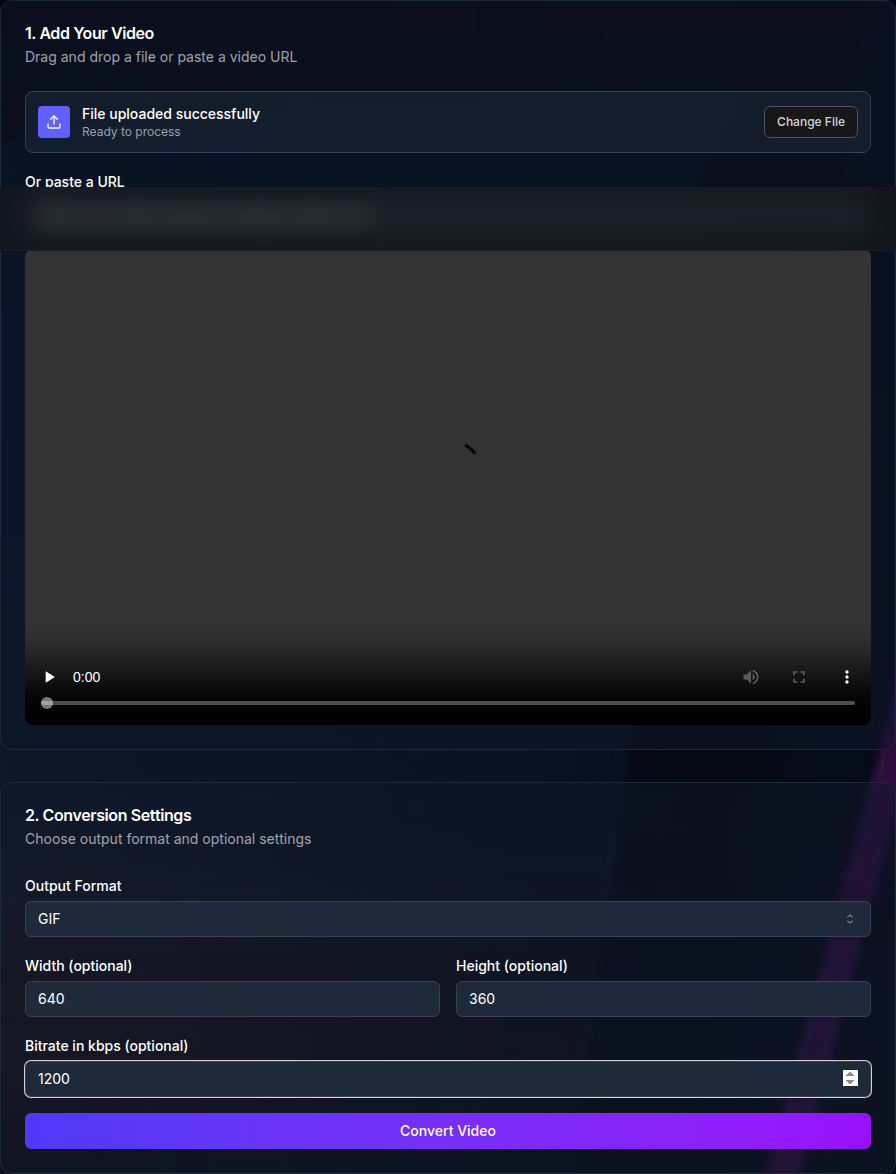
Create short, loopable GIFs from MP4, WebM, MOV, or AVI videos.
The GIF tool accepts MP4, WebM, MOV, and AVI inputs. If your source is in another format such as MKV, convert it to MP4 first and then create the GIF.
Using a clean, standard MP4 makes the conversion more predictable and avoids issues with rotation metadata or unusual codecs.
The best GIFs show one clear action. If your video is long, trim it down to the highlight before converting. This improves clarity and keeps file size manageable.
Aim for a short, purposeful moment that loops well. A quick UI interaction, a gesture, or a short transition usually works best.
GIFs can grow quickly. Start with a short clip and reduce the output dimensions if you need a smaller file. This keeps the GIF light enough to share in chat tools and docs.
Reducing width and height is the most effective way to shrink a GIF. A smaller output often looks better in support tickets and documentation.
If the GIF is rotated or looks off, re-encode the source video to MP4 and try again. If colors look different, remember that GIFs have limited color depth compared to video.
If the GIF looks choppy, shorten the clip or reduce the output size. Busy scenes and large dimensions often cause stutter.
The GIF converter accepts MP4, WebM, MOV, and AVI and outputs a GIF. If your source is in another format, convert it to MP4 first to keep the workflow simple.
Limits depend on your plan and usage. Anonymous users are rate limited, while authenticated accounts can scale based on available credits.
A quick checklist keeps GIFs small and clear. Run through these items before exporting to avoid multiple retries.
If any item looks off, trim or resize first, then convert again.
Once the GIF is ready, download it and store it where your team can find it. For customer-facing assets, keep a copy in your own storage for long-term access.
If you need to share multiple GIFs, naming files consistently helps keep assets organized.
Use the API to automate video to GIF conversions. Submit jobs with URLs and collect output links when processing completes. This is ideal for repeatable pipelines.
You can queue multiple jobs, track status via job IDs, and store outputs in your own storage.
GIFs are great for quick loops, but they do not include audio. If the content needs sound or is longer than a few seconds, keep it as MP4 and share the video instead.
If the goal is quality, MP4 will preserve more detail and color depth.
Any MP4, WebM, MOV, or AVI video to GIF: create loopable animations for sharing and support.
Use POST /video/convert with out_format=gif, then poll /jobs/:id.