
What Is a Free MP4 Cutter Online?
A free MP4 cutter online is a browser-based tool that trims video files by setting a start time and an end time — no software to install and no watermark added to your output. VideoComposer's MP4 cutter works directly in your browser: upload a file or paste a video URL, set your timestamps, and download a clean clip in seconds.
No watermark. No signup required. No desktop software.
This makes it the fastest option when you need to cut an MP4 file quickly — whether you are pulling a highlight from a long recording, removing dead time from a screen capture, or extracting a scene to share with a teammate.
Why Cut MP4 Files?
What Are the Most Common Reasons to Cut an MP4?
There are four main reasons to cut an MP4 file:
- Remove unwanted sections — trim silence, a long intro, or a flubbed ending.
- Extract a highlight — pull a short clip from a longer recording for social media or a support ticket.
- Reduce file size — shorter clips are smaller and faster to share or upload.
- Prepare clips for merging — cut individual segments before joining them with a video merger.
Most video cutter tools require you to download software or create an account before you can do anything. VideoComposer removes both requirements. You can cut your first MP4 without registering.
How to Cut MP4 Online — Step by Step
How Do I Cut an MP4 File by Start and End Time?
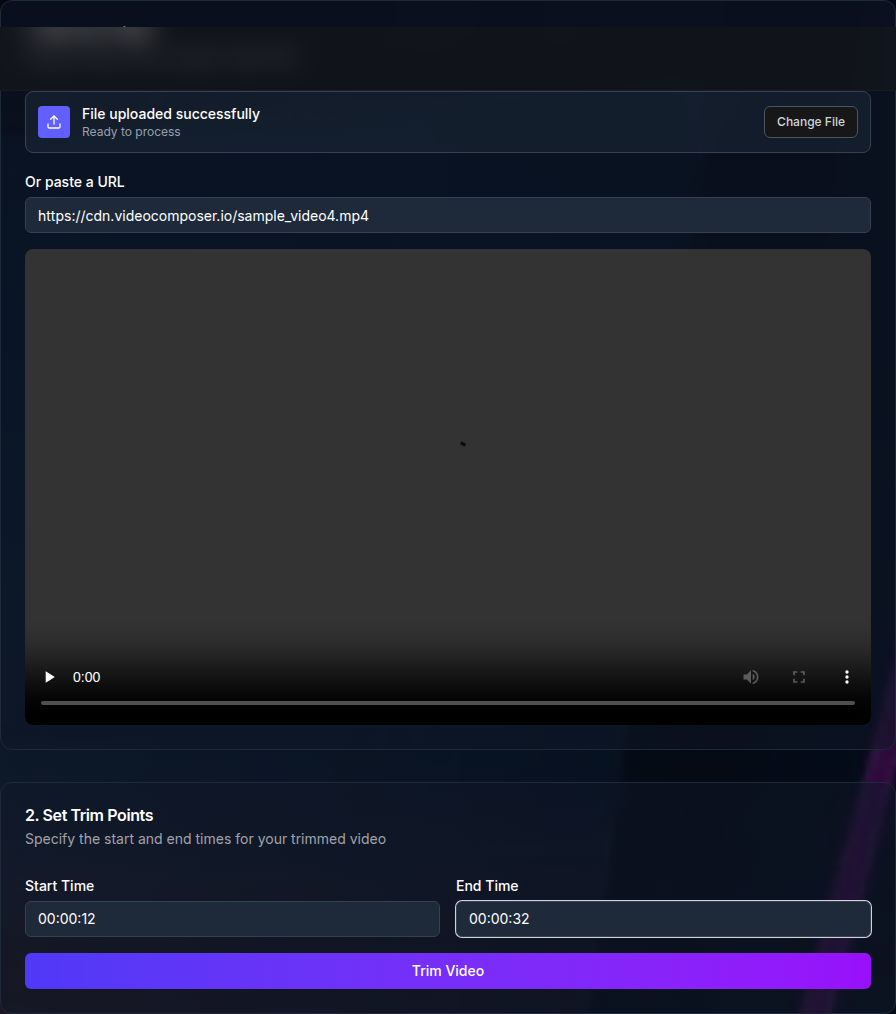
To cut an MP4 file by start and end time, open the tool, provide your video, set the start and end timestamps in HH:MM:SS format, and submit the job. Here is the full process:
Step 1: Open the MP4 cutter tool
Go to VideoComposer's MP4 cutter. You do not need to create an account for a basic cut.
Step 2: Add your video
Upload an MP4 file from your computer or paste a direct video URL. URL input is useful when your file is already hosted somewhere — no upload needed.
Step 3: Set start and end times
Enter your start and end times in HH:MM:SS format. For example, to cut from the 30-second mark to the 1-minute 45-second mark, enter 00:00:30 for start and 00:01:45 for end.
Step 4: Submit the job
Click the cut button. The tool processes the clip as an asynchronous job, so you can wait on the page or check back shortly.
Step 5: Download your clip
Once the job completes, download your trimmed MP4. The output contains no watermark and is ready to share immediately.
Tips for Accurate Cuts
- Keyframe alignment: Fast cuts snap to the nearest keyframe, which can shift the cut by a fraction of a second. If precision matters, add a small buffer to your timestamps and adjust if needed.
- Use a clean MP4 source: Standard H.264 MP4 files cut most reliably. Files from unusual codecs or screen recorders with variable frame rates may behave differently.
- Test with a short clip first: If you are cutting a long file, verify your timestamps on a short test before running the full job.
Advanced Features: Cut Multiple Clips and API Usage
Can I Cut Multiple Clips from One MP4?
Yes. You can run the cutter multiple times on the same source file with different start and end times to extract multiple clips. Once you have your clips, use the merge videos tool to join them into a single output.
For high-volume or automated workflows, the VideoComposer API supports MP4 trimming programmatically. Developers can submit jobs via POST /video/trim with start and end parameters, then poll GET /jobs/:id for the output URL. This is ideal for pipelines that cut clips from user-uploaded content or process batches of recordings.
Full API documentation is available at /developers and /docs.
Can I Convert the Clip After Cutting?
Yes. After cutting your MP4, you can run it through the video converter to change the format — for example, converting a trimmed MP4 to WebM for web delivery or to GIF for a lightweight preview. Cutting first, then converting, keeps the pipeline clean.
Comparison: Top 5 Free MP4 Cutters Online
Which Free MP4 Cutter Is Best?
VideoComposer offers the cleanest no-watermark, no-signup experience for straightforward MP4 cutting. Here is how it compares to other popular free tools:
| Tool | No Watermark | No Signup Required | URL Input | API Access | Max Free File Size |
|---|---|---|---|---|---|
| VideoComposer | Yes | Yes | Yes | Yes | Generous free tier |
| Kapwing | Yes (with signup) | No | No | Paid only | 250 MB |
| Clideo | No (free tier adds watermark) | No | Yes | No | 500 MB |
| VEED | No (free tier adds watermark) | No | No | Paid only | 250 MB |
| Canva (Clipchamp) | Yes | No (Microsoft account) | No | No | Limited |
VideoComposer is the only option that delivers a clean, watermark-free output without requiring you to create an account. It also supports URL input, which eliminates the upload step for hosted files, and exposes the same functionality through a developer API.
Key differences to know:
- Clideo and VEED add a visible watermark on free-tier outputs — you must pay to remove it.
- Kapwing and Canva require account creation before you can export.
- Only VideoComposer offers a developer API on the free tier for automation.
Ready to try it? Cut your MP4 online now — free, no signup required. Looking for a different edit? Browse the full set of video tools.
Frequently Asked Questions
Is VideoComposer's MP4 cutter really free?
Yes. You can cut MP4 files for free without creating an account. The free tier is rate-limited for high-volume use — see pricing for details on usage limits and paid plans.
Does cutting an MP4 reduce quality?
No. Fast, keyframe-aligned cuts do not re-encode the video, so quality stays identical to the source. If you choose a cut point that requires re-encoding (for frame-perfect precision), there may be minimal quality change, but for most cuts the output matches the original.
What file formats does the MP4 cutter support?
The cutter accepts MP4, WebM, MOV, and AVI input files. Output is MP4. Sources with unusual or legacy codecs can still fail the fast cut — if that happens, or if your source is in another format such as MKV, convert it to MP4 first using the video converter.
How do I cut a video by start and end time without software?
Open a browser-based MP4 cutter like VideoComposer, upload or link your video, enter the start and end timestamps in HH:MM:SS format, and download the trimmed output. No software download is needed.
Can I cut long MP4 files online for free?
Yes. VideoComposer handles long video files. Processing time increases with video length. For very large files, using a direct URL input (if your file is hosted online) is faster than uploading from your device.
Why is my cut slightly off from the timestamp I set?
Most online MP4 cutters align cuts to keyframes for speed. This can shift the cut point by a fraction of a second in either direction. Adjust your timestamps by a second and try again if the result is not close enough.
Can developers automate MP4 cutting?
Yes. VideoComposer provides a REST API at /developers. Submit trim jobs via POST /video/trim with your start and end parameters, then retrieve the output URL using GET /jobs/:id. The API is available on the free tier with rate limits.