
How to Merge Videos with Subtitles Online
VideoComposer is the only free online tool that preserves subtitle tracks when merging multiple video clips into one file. Upload your videos and a subtitle file (SRT, VTT, or ASS format), and the tool joins the clips in sequence while keeping your captions synced — no watermark, no signup required.
No watermark. No signup. Subtitles stay synced across all clips.
Most video merging tools drop subtitle tracks entirely or force you to re-add captions manually after joining clips. VideoComposer handles subtitle-aware merging in a single step, making it the fastest solution for content creators, localization teams, and accessibility-focused workflows.
Why Merging Videos with Subtitles Is Hard
What Makes Subtitle-Aware Video Merging Difficult?
When you merge two or more video clips, subtitle timestamps become misaligned. A subtitle file contains timestamps relative to the start of a single video. When that video becomes the second clip in a merged sequence, all of its subtitle timestamps are now wrong — they no longer account for the duration of the first clip.
Fixing this manually means:
- Calculating the total duration of every preceding clip.
- Adding that offset to every timestamp in the subtitle file.
- Merging the adjusted files without breaking the encoding.
This is why most tools skip subtitle support during merging — it requires timestamp recalculation. VideoComposer handles this automatically when you provide a subtitle file during the merge job.
The result is a single merged video where captions appear at exactly the right moment, every time.
How to Merge Videos with Subtitles Using VideoComposer
Step-by-Step Guide to Subtitle-Aware Video Merging
Step 1: Open the merge videos tool
Go to VideoComposer's merge videos tool. No account is required to start.
Step 2: Add your video clips
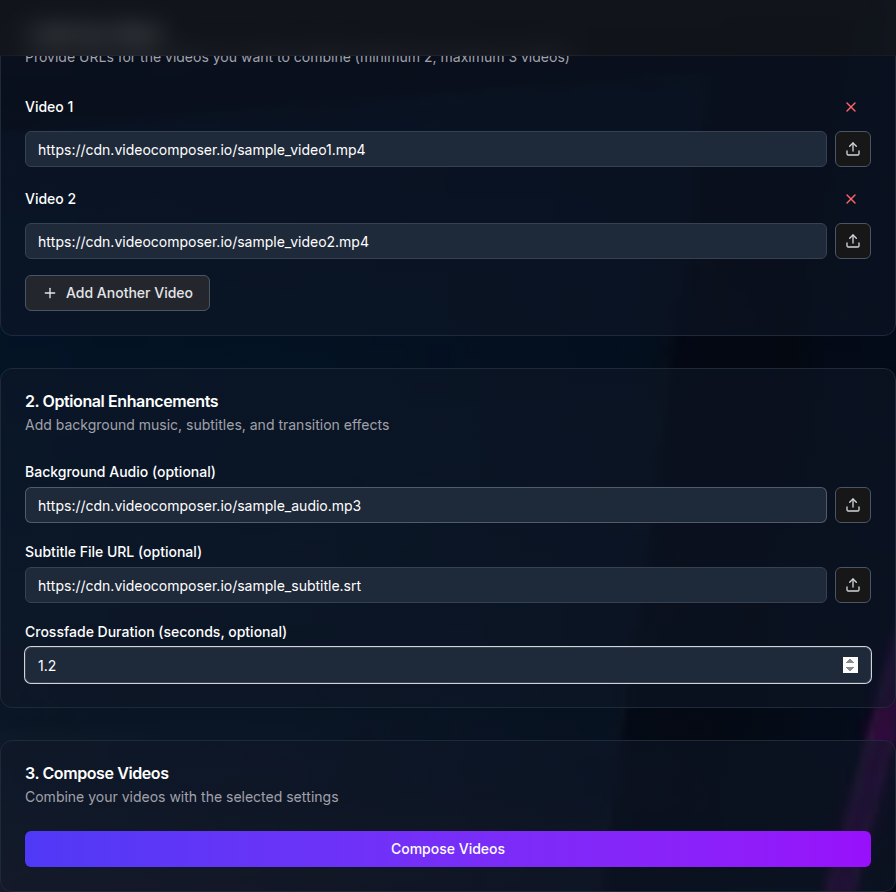
Upload your video files or paste direct URLs for each clip. You can add two or more clips. For consistent output quality, use MP4 files with matching resolution and frame rate. If your clips are in different formats, convert them first using the video converter.
Step 3: Add your subtitle file
Upload or link to your subtitle file. Supported formats include SRT, VTT, and ASS. The subtitle file should be encoded in UTF-8. If you have separate subtitle files for each clip, combine them into a single file and let VideoComposer calculate the correct offsets during merging.
Step 4: Submit the merge job
Click the merge button. VideoComposer processes the job asynchronously. You can wait on the page or return shortly to download the result.
Step 5: Download the merged video with subtitles
Your output is a single MP4 file with subtitles burned in and synced across all clips. The file is watermark-free and ready to publish, upload, or share.
What Happens to Subtitle Timing?
VideoComposer calculates the duration of each clip and offsets subtitle timestamps accordingly. If clip 1 is 45 seconds long, all subtitle cues from clip 2 are shifted forward by 45 seconds in the output. This happens automatically — you do not need to modify your subtitle file manually.
Supported Subtitle Formats
Which Subtitle Formats Does VideoComposer Support for Merging?
VideoComposer supports three subtitle formats during video merging:
| Format | Extension | Best For |
|---|---|---|
| SubRip | .srt | Universal compatibility, most widely used |
| WebVTT | .vtt | Web video players, HTML5 video elements |
| Advanced SubStation Alpha | .ass | Styled captions, anime, broadcast |
SRT is the safest choice if you are unsure which format to use. It is supported by virtually every video player and platform. VTT is preferred for web-based delivery. ASS supports custom fonts, colors, and positioning for more complex subtitle styling.
All formats must be UTF-8 encoded for clean rendering of special characters, accents, and non-Latin scripts.
Common Use Cases
Who Benefits Most from Subtitle-Aware Video Merging?
YouTube creators and video editors
Long-form YouTube content is often recorded in multiple takes. Merging clips into a single video while preserving captions means you can publish accessible content without rebuilding your subtitle file from scratch after editing.
Content localization teams
Localization workflows often produce separate subtitle files for each source clip. Merging the videos and their translated subtitles into a single deliverable — accurately synced — saves hours of manual timestamp work per language per video.
Accessibility and compliance
Organizations that must caption video content for compliance (ADA, WCAG, educational institutions) need reliable subtitle preservation during any editing step. Losing captions during a merge and needing to re-caption is costly and error-prone. VideoComposer eliminates that risk.
Social media and short-form video producers
Captions are critical for social video. The majority of viewers watch with the sound off. Merging clips without losing captions means your short-form content stays accessible and performs better on platforms that auto-display captions.
Comparison: VideoComposer vs. Competitors for Subtitle Merging
Does Kapwing, VEED, or Clideo Support Subtitle-Aware Merging?
No. None of the major free online video merging tools support subtitle-aware merging as a built-in feature. VideoComposer is the only free online tool that automatically handles subtitle timing when merging multiple clips.
| Tool | Merge Videos | Add Subtitles | Subtitle-Aware Merge | No Watermark (Free) | No Signup |
|---|---|---|---|---|---|
| VideoComposer | Yes | Yes | Yes | Yes | Yes |
| Kapwing | Yes | Yes | No | No (requires signup) | No |
| VEED | Yes | Yes | No | No (watermark on free) | No |
| Clideo | Yes | Yes | No | No (watermark on free) | No |
| Canva (Clipchamp) | Yes | Yes | No | Yes (with account) | No |
When these tools merge videos, subtitle tracks are either dropped or users must manually re-add and re-time captions in the editor after merging. VideoComposer preserves the subtitle relationship during the merge operation itself.
For teams that regularly merge captioned content, this feature alone saves significant manual work per project.
Advanced Usage: Compose Tool and API
For more complex merge workflows — multiple inputs, audio tracks, and subtitle files combined — use the video compose tool. This tool supports advanced input combinations including:
- Multiple video clips in sequence
- An external audio track (background music or voiceover)
- A subtitle file with automatic timestamp offset calculation
For automation and developer use, the VideoComposer API supports subtitle-aware merging at scale. Submit jobs via POST /video/compose with an inputs[] array for your video clips and a subtitle_url parameter for the caption file. The API handles timestamp offsets automatically. Track job completion with GET /jobs/:id.
Full API reference is available at /developers and /docs.
If you want to add branding after merging, use the add watermark tool on the merged output as a second step. You can also trim individual clips before merging using the MP4 cutter.
Frequently Asked Questions
Can I merge videos and keep subtitles synced automatically?
Yes. VideoComposer automatically offsets subtitle timestamps when merging multiple clips. You provide the video files and a single subtitle file, and the tool handles the timing calculation. No manual timestamp editing is required.
What subtitle format should I use for merging?
Use SRT for maximum compatibility. SRT is supported by the widest range of video players and platforms. Use VTT if your output is destined for a web-based video player. Use ASS if you need styled captions with custom fonts or positioning.
Does merging videos with subtitles add a watermark?
No. VideoComposer does not add watermarks to merged videos, even on the free tier. The output is clean and ready to publish without any additional editing.
Can I merge more than two videos with subtitles?
Yes. VideoComposer supports merging multiple clips in a single job. Each clip's subtitle timing is offset by the cumulative duration of all preceding clips in the sequence.
My subtitle file has separate sections for each clip. What should I do?
Combine your subtitle cue blocks into a single file before uploading. Make sure the timestamps reference the start of the first clip (i.e., start at or near 00:00:00). VideoComposer will apply the correct offsets for subsequent clips during the merge.
Is there an API for merging videos with subtitles automatically?
Yes. The VideoComposer API supports subtitle-aware merging via POST /video/compose. Pass your video clip URLs in the inputs[] array and include a subtitle_url for the caption file. See /developers for full documentation and authentication details.